
TL;DR: Playbook is not a walled garden. It connects to the tools your team already lives in, so assets flow in and out without downloading and re-uploading. You can bring files over from Google Drive, Dropbox, and OneDrive, drag assets into Figma, auto-save Midjourney generations, get board activity in Slack and Discord, wire up automations with Zapier, clip files from the web with a Chrome extension, two-way sync with Adobe apps, collect files from clients without an account, and script the whole library through the Playbook API, SDK, and MCP. Here are nine worth knowing.
1. Google Drive, Dropbox, and OneDrive
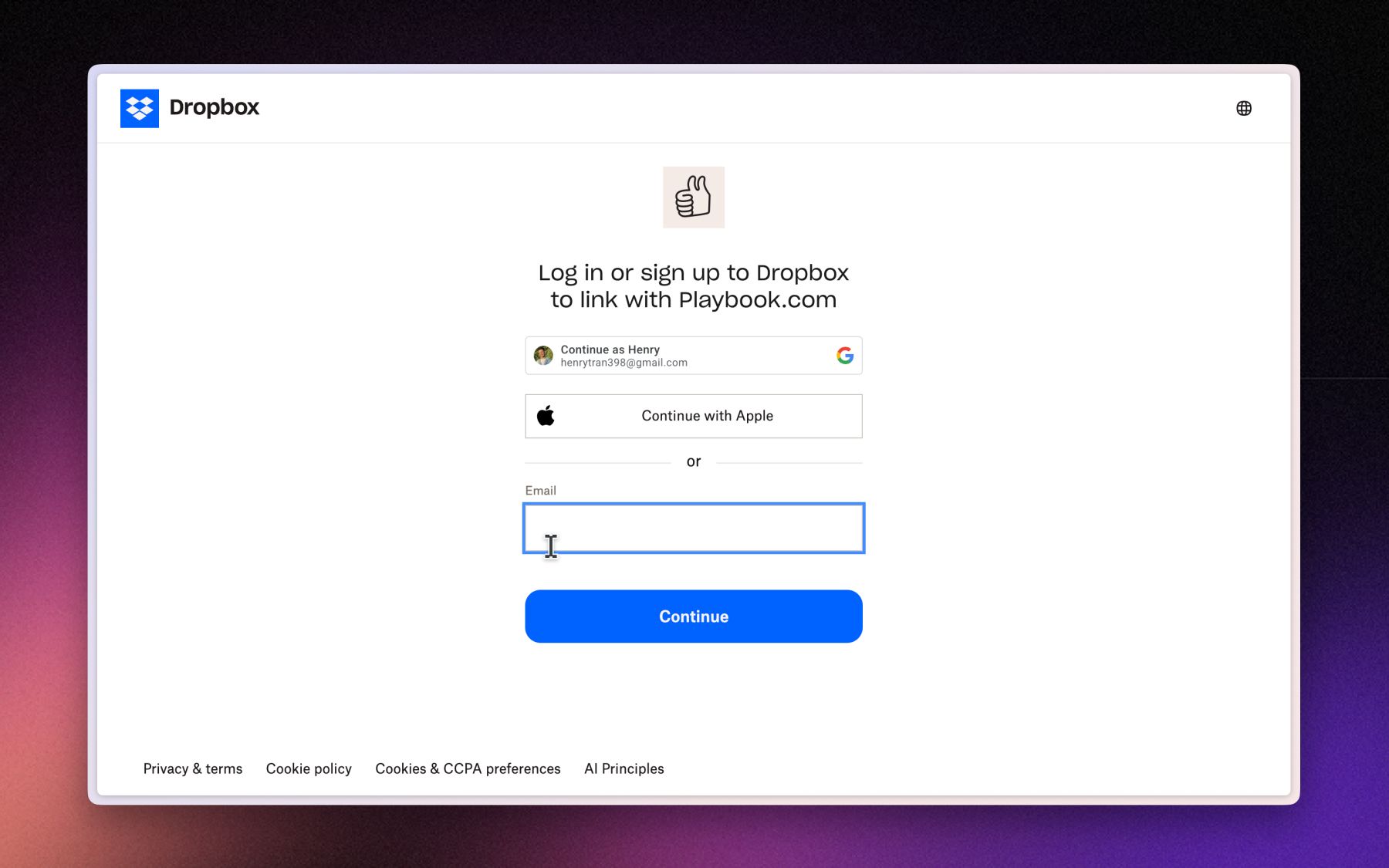
Playbook connects to the cloud storage you already use and brings your library over. From the import menu you authenticate with Google Drive, Dropbox, or OneDrive, pick the folders you want, and the import runs in the background while you keep working. It is the fastest way to get years of existing files into Playbook without downloading and re-uploading a single folder. Note that this copies your files into Playbook rather than leaving them in place, so it is onboarding, not a background mirror.
2. The Figma plugin
The Figma plugin puts your Playbook library inside Figma so you can drag approved assets straight onto the canvas. Install the plugin, sign in once, open it from any file, and drop in the logo, photo, or export you need. Assets linked back get an "Open in Figma" action and an in-app preview, so your design files and your library stay connected. See the full walkthrough in how to pull files from Playbook into Figma.
3. Slack and Discord
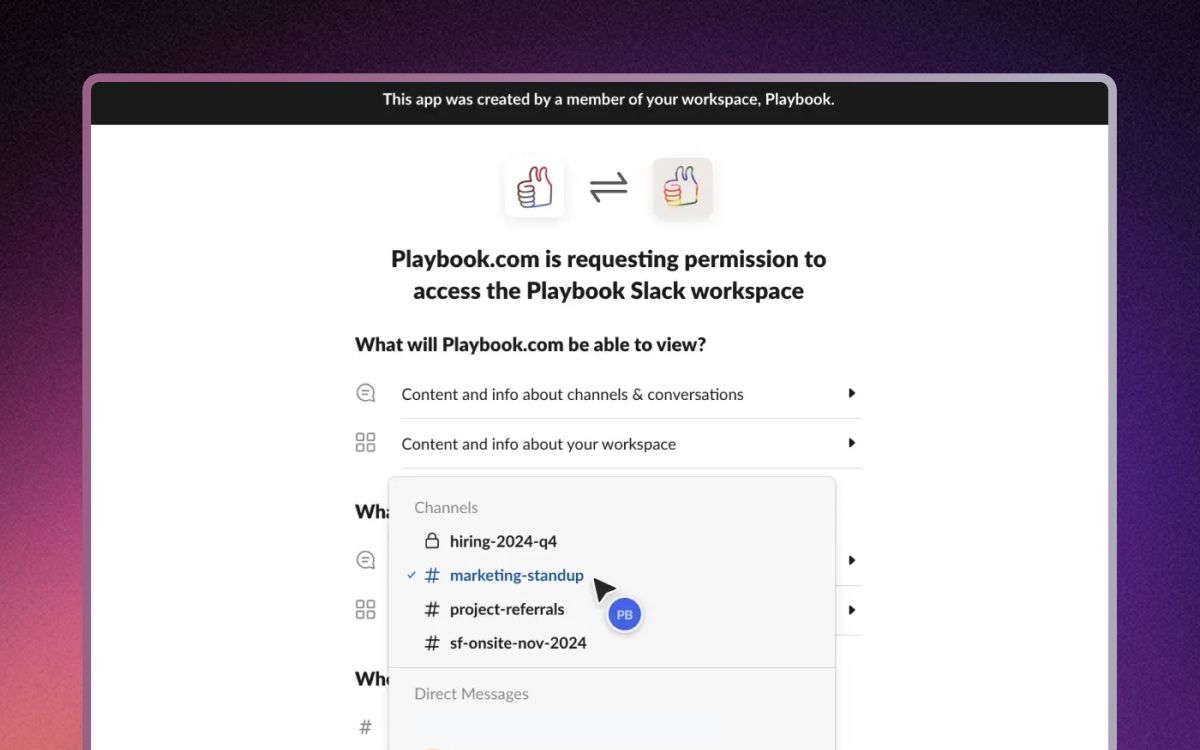
Playbook can post board activity into Slack and Discord so your team sees uploads, comments, and approvals where they already talk. Connect a channel from a board's notification settings and updates start flowing. Slack also works as an import source, so files shared in Slack can be pulled into your workspace instead of getting lost in the scroll.
4. Midjourney
Playbook auto-saves your Midjourney generations so your AI output stops living in a Discord channel. Connect a personal Discord server running Midjourney, and every new image imports to a board automatically, with variations grouped and prompts attached. It is a one-way flow from Discord into Playbook, which is exactly what you want for archiving and organizing a firehose of generations.
5. Zapier
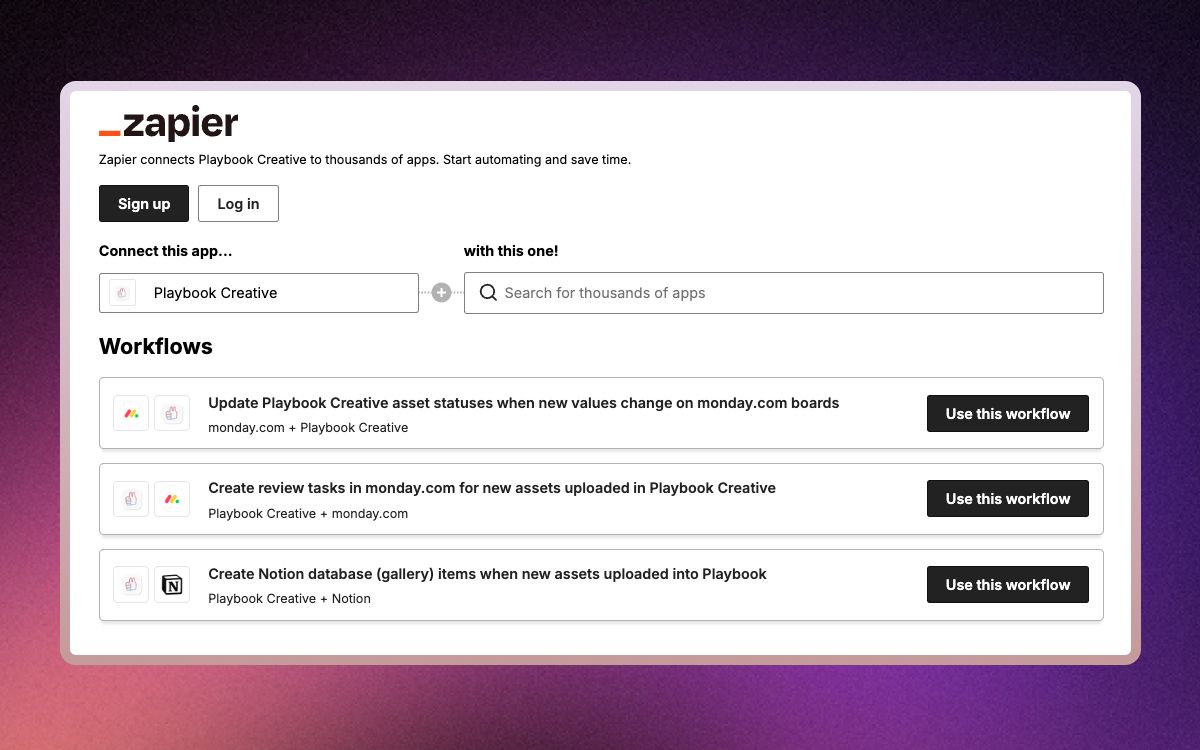
Zapier lets Playbook trigger automations across thousands of other apps. Playbook sends events to your Zapier workflows, so "when something happens in Playbook, do X somewhere else" becomes a no-code recipe. Think posting new approved assets to a channel, logging uploads in a spreadsheet, or kicking off a downstream task when a board changes.
6. The Chrome extension
The Playbook Image Saver Chrome extension clips files from any web page straight into your workspace. Instead of the right-click, save-to-desktop, upload-later shuffle, you save references and assets to a board in one click while you browse. It is a small tool that quietly kills a lot of tab clutter.
7. Desktop sync and Adobe
The Playbook desktop app syncs your boards to a folder on your machine and two-way syncs with Adobe apps. Open a Photoshop, Illustrator, or InDesign file from the synced folder, edit it, save, and the new version flows back to your library with no manual export. Your Premiere project files and exports ride along in the same folder. Full details are in the Adobe integration guide.
8. Email-to-board and Dropzone
Playbook can collect files from people who will never make an account. Give a board an email address and attachments sent to it land as assets automatically. Or turn on a Dropzone, a public upload page where clients, photographers, and vendors drop files straight into your workspace without logging in. Both remove the "can you make an account real quick" friction that stalls handoffs.
9. The API, SDK, and MCP
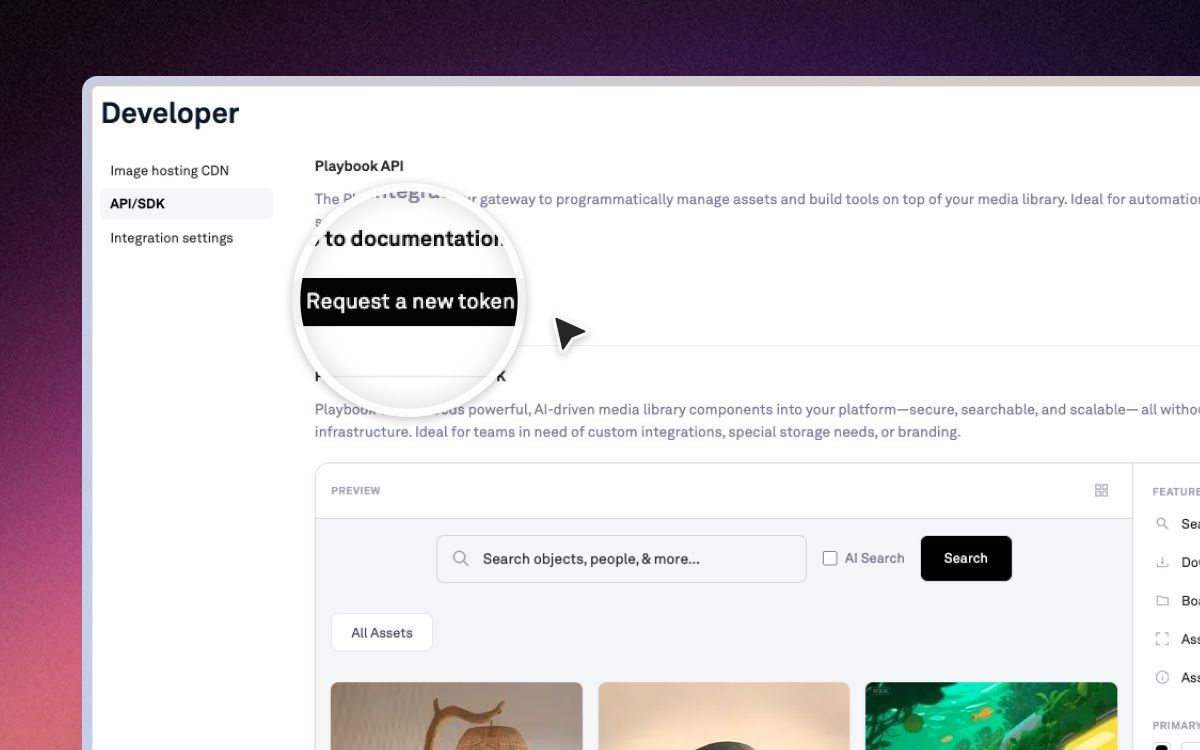
Playbook exposes the whole library programmatically. A REST API with OAuth2 lets you read and mutate orgs, assets, boards, comments, and search from your own systems. Model Context Protocol (MCP) support lets AI agents like Claude and Cursor act on a workspace directly. There is a Media Library SDK for deeper builds, and a signed webhook endpoint for trusted services to report results back. Developer docs live at dev.playbook.com. At the time of writing, REST API access is a paid-plan feature, so confirm the current tier on the pricing page.
Bonus: mini-apps inside the workspace
Beyond outside connections, Playbook builds partner tools right into the workspace. Mini-apps from Photoroom, Picsart, Vectorizer, and others let you remove backgrounds, upscale, convert formats, and more without leaving Playbook or exporting to another editor.
Frequently asked questions
Does Playbook integrate with Figma?
Yes. The Playbook Figma plugin lets you browse your library and drag assets onto the canvas inside Figma, with no download or re-upload. Install it from the Apps and plugins menu and sign in once.
Can I connect Google Drive or Dropbox to Playbook?
Yes. You can import folders from Google Drive, Dropbox, or OneDrive from the import menu. You authenticate, choose folders, and the import runs in the background. It copies files into Playbook rather than leaving them in place.
Does Playbook have an API?
Yes. Playbook has a REST API with OAuth2, Model Context Protocol support for AI agents, an SDK, and a signed webhook endpoint. Docs are at dev.playbook.com. API access is a paid-plan feature at the time of writing.
Does Playbook work with Zapier?
Yes. Playbook sends events to Zapier so you can trigger no-code automations in thousands of other apps when things happen in your workspace.
Want to connect Playbook to the rest of your stack? Book a demo and we will map it to your workflow.