Find it by what it looks like
Describe the shot and get matches, no tags required. Overexposed, shot from below, too much orange. This is the one your agent has that a filter panel doesn't.


NEW – Now in Claude, ChatGPT, and Cursor
Playbook speaks the Model Context Protocol (MCP), so your AI agents can handle tedious tasks without asking you where things are. Search, tag, version, organize, share.
Quick setup
Pick the tool you already work in and authorize once.
It is listed in Claude's connector directory. One connection covers Claude on the web, desktop, and mobile.
Connect it from its directory page. To add it by hand instead, paste this URL as a custom connector.
https://mcp.playbook.com/mcp Authorize Playbook once, then ask Claude to find, tag, or organize anything in your library.
The same URL — it works with any client that speaks MCP.
https://mcp.playbook.com/mcp Turn on Developer mode in Settings, then add the URL with the plus button. Pick OAuth and leave the client ID and secret blank.
Authorize Playbook once, then pull assets straight from your boards into the conversation.
One click opens Cursor with the server ready to install. Nothing to paste into .cursor/mcp.json.
Authorize once, then call Playbook from Cursor's agent — or skip MCP and hit the REST API directly.
In your terminal, inside the project you want Playbook in.
claude mcp add --transport http playbook https://mcp.playbook.com/mcp In Claude Code, run /mcp, pick playbook, choose Authenticate, and allow Playbook in the browser.
The first adds Playbook, the second opens the Playbook sign-in in your browser.
codex mcp add playbook --url https://mcp.playbook.com/mcp && codex mcp login playbook Allow Playbook once, then call it from Codex in any project.
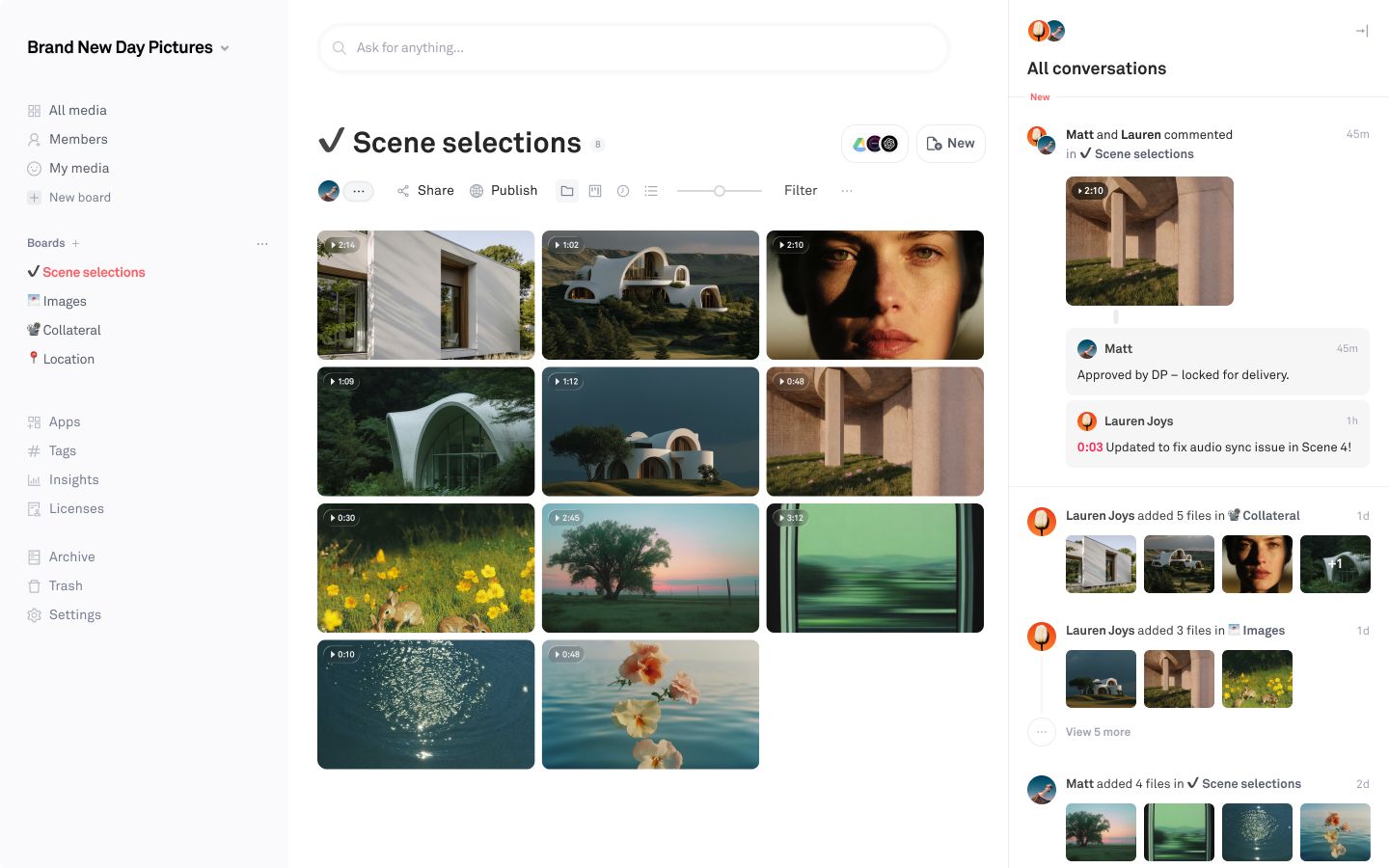
Post house just dropped the Scene 4 delivery into the workspace. Help me sort clips into Scenes selections, stills into Images, anything branded into Collateral.
Reading 16 new assets against the project boards...
Eight clips into Scene selections, three stills into Images, five into Collateral. The two re-renders of shots went in as versions. Nothing overwritten.
 Attachment SS26_product_sheet.csv
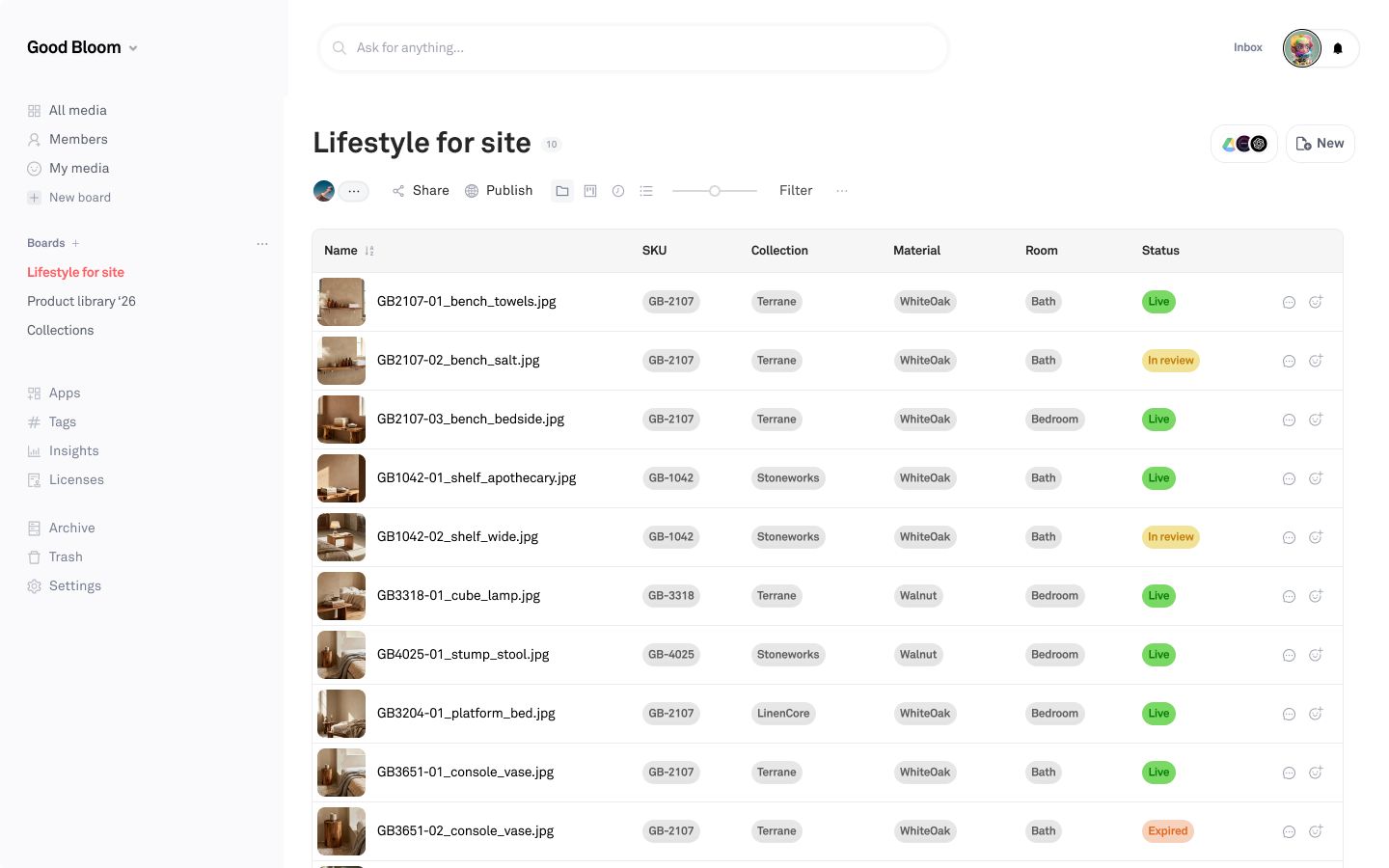
 Attached the SS26 product sheet. Match column A to the filenames and fill in the fields.
Reading 96 rows, matching against 1,284 assets...
Matched 1,190 by SKU and wrote collection, material, and room onto each. 94 had no SKU in the filename, so those are on a board for you to assign.
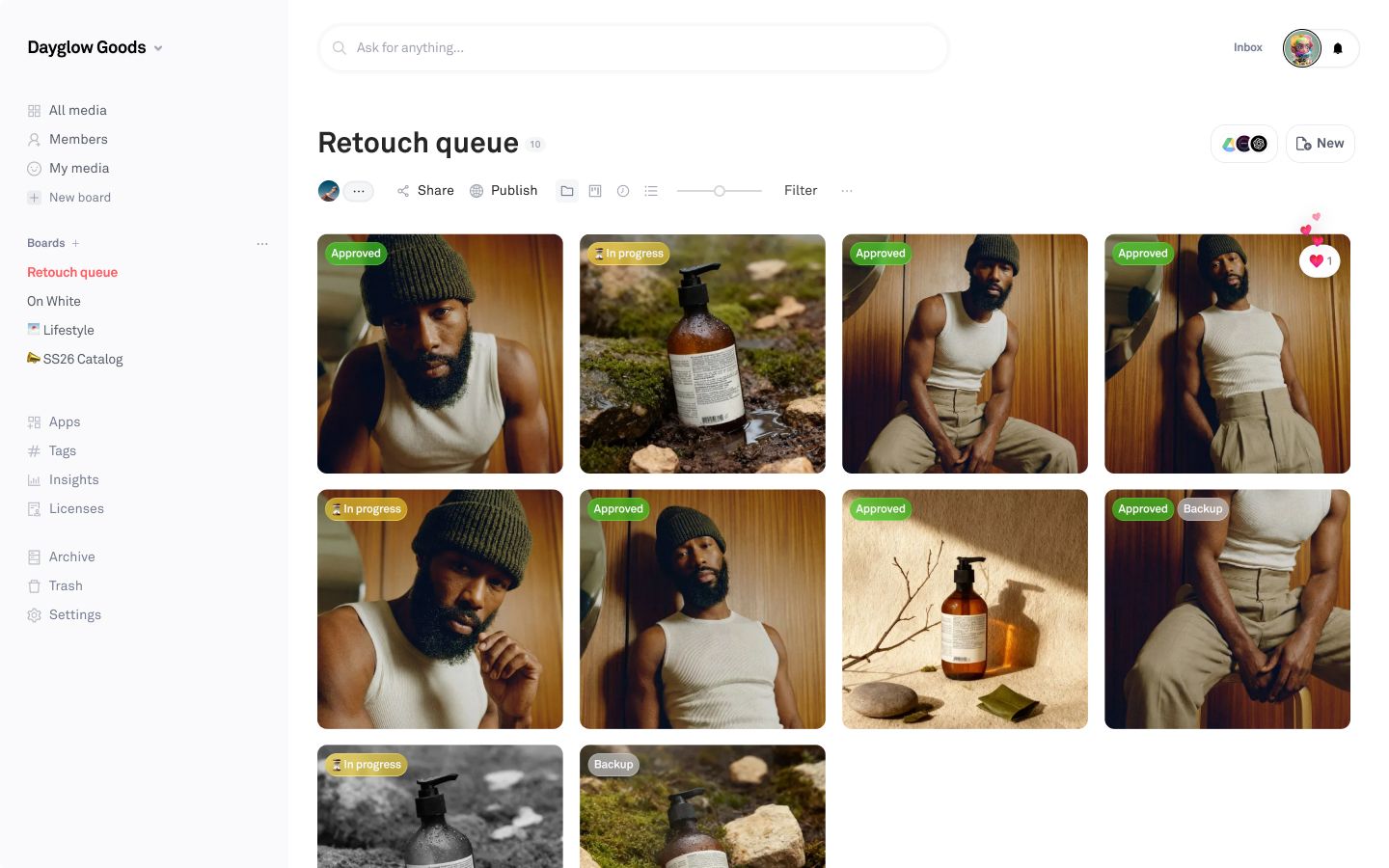
The vendor went through the 'Retouch queue' board and left some comments. Can you summarize the changes and set status 'Approved' on the asset they actually signed off?
Reading 14 comments left in Retouch queue…
8 marked as 'Approved' and 2 marked for 'In progress' based on what they wrote. Five I couldn't call either way, so those are untouched and grouped for you.
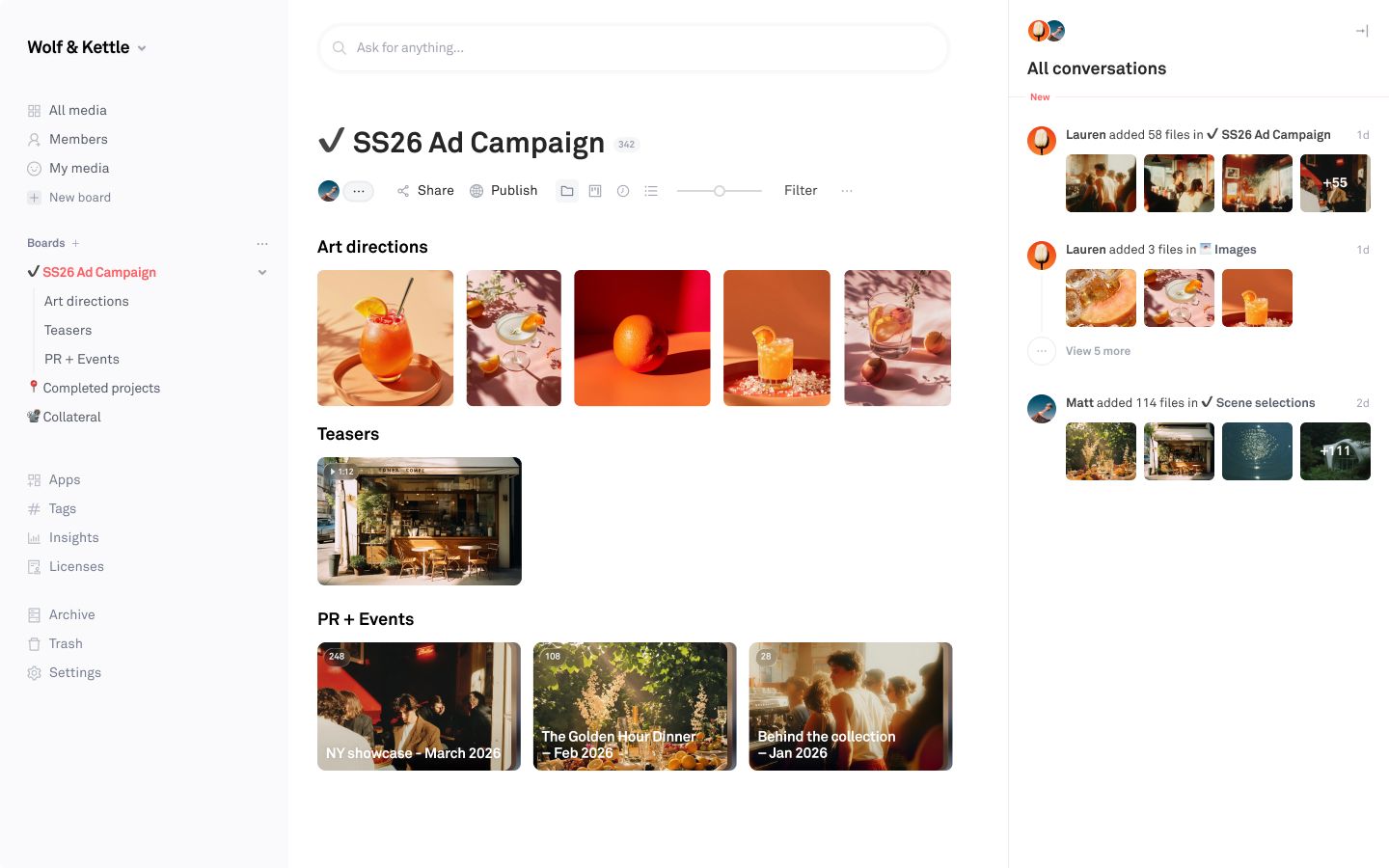
Client wants to see where we're heading with the campaign. Pull the a few latest art direction, teaser, and event work into a board I can share with them.
Reading 342 assets across the three campaign boards...
38 on a new board, split the same three ways as the originals. 9 in Art directions, the teaser, and 28 in PR + Events. Ready to share when you are.
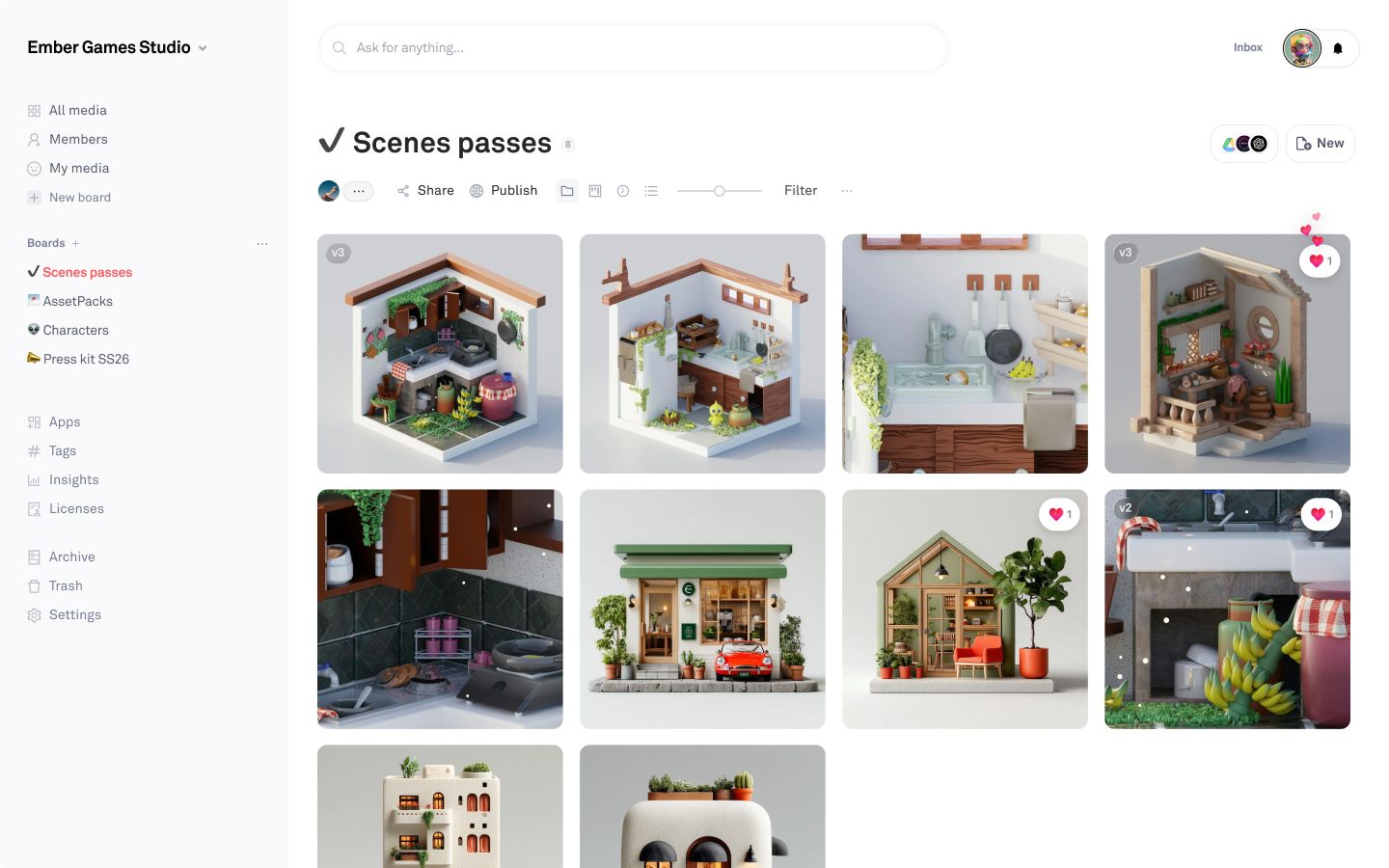
Half of this board is iterations that got uploaded as separate files instead of versions. Can you replace them?
Reading 8 assets, matching by scene and pass...
5 folded onto their originals as new versions. Every earlier pass is still there and any of them can roll back. Two stayed put since I couldn't match to anything.
Tools
Stop describing where a file lives. Ask for the file.
ai_search Find assets by what they look like. search_assets Filter by tag, status, field, or type. list_assets Read a whole library or board tree. get_assets Full detail for up to a hundred assets. get_asset_previews Render assets at the size you choose. list_boards The board tree, at any depth. list_board_children The child boards under one board. get_board A board's title, description, and count. create_board A new board, nested where you want it. update_board Rename a board or move it elsewhere. copy_assets Copy assets into another board. move_assets Move assets to a different board. update_asset Write titles, tags, and fields onto an asset. update_asset_status Set the status label on an asset. change_asset_tags Add and remove tags, nothing else. set_asset_approval Approve up to a thousand assets at once. list_custom_fields Every field in the workspace and its options. create_custom_field A new field and its options. create_asset_version Add a new version of the same asset. list_asset_versions The full version history, newest first. revert_asset Roll an asset back to an earlier version. share_board A link anyone can open, password optional. publish_board A public page, with download controls. asset_permalinks Add, read, or revoke permanent public URLs. get_comments Read the thread on an asset or board. create_comment Post a comment. create_note A sticky note, for a brief or a caption. upload_from_urls Bring in a hundred files per call, tagged. list_organizations Which workspaces the account can reach. list_members Who's in the workspace. delete_asset Remove an asset. delete_board Remove a board and everything in it. delete_custom_field Remove a field and all its options. Examples
Give me a tour of our workspace, then suggested how to structure it better. What should be organized by boards vs tags?
What you have and where it's piled up, followed by a proposed board structure.
Reorganize our workspace so boards are one thing and tags carry the rest. Show me the plan before you move anything.
A plan first, then boards built and assets moved once you approve.
Everything in [board] needs filing. Sort in into the right boards, tag it to match and leave anything ambiguous.
Sorted and tagged, with a short list for you to check
Our tags have drifted. Find near-duplicates like [tag 1] and [tag 2] then merge them into one.
One tag instead of three spellings, so search stops missing things.
Find everything in our workspace that looks like [warm interior light, soft shadow] and copy it on a new board to share.
Matches found by what the images look like, not just file names.
MCP (the Model Context Protocol) is an open standard for connecting AI assistants to outside tools and data. An app publishes an MCP server, and any MCP client can use it. Playbook publishes one, so an assistant can work with your workspace directly instead of you copying files into a chat.
Any client that speaks MCP. The steps above cover Claude, ChatGPT, Cursor, Claude Code and Codex because those are the ones teams ask for most, but the same connector URL works anywhere else.
It connects as you and works inside your account's permissions: it reaches the boards and assets you can already reach, and nothing that hasn't been shared with you. It can also make changes, the same ones you can make yourself. Tagging, filing, versioning, approving, creating boards, sharing, and bringing in files from a URL.
Deleting is a soft delete: anything removed goes to your Playbook trash and can be restored. The assistant is also instructed to confirm with you before deleting anything. On plans with version history, replacing a file keeps the original as a version you can roll back to.
Yes. One connection reaches every workspace your account belongs to, and the assistant works in whichever one you name. If you don't say, it will ask.
No. Playbook does not use your assets to train models. Once an assistant is connected, what it does with the files it retrieves is governed by that tool's own data policy.
All of them, starting with Free. MCP requests count toward your plan's monthly API calls: 1K on Free, 20K on Pro, 200K on Team, 5M on Business. See the pricing page for the full breakdown.
MCP is for the assistant: it discovers what Playbook can do and calls it on your behalf, in conversation. The REST API is for software you write. Both reach the same workspace, and the developer docs cover the API.