Conversations
Learn how to use Playbook's Conversations feed for workspace updates and manage your Notifications to stay on top of every mention.
In Playbook, Conversations is the "beating heart" of your workspace, gathering activity, comment, reactions and assets history into a single, digestible feed.
What are Conversations?
Instead of jumping between tools to figure out what changes or who said what, Conversations give you and your team a single place to follow:
- Comments on files and boards
- Replies and reactions
- Activity related to boards or assets like move, share, delete,...
Different ways to view Conversations
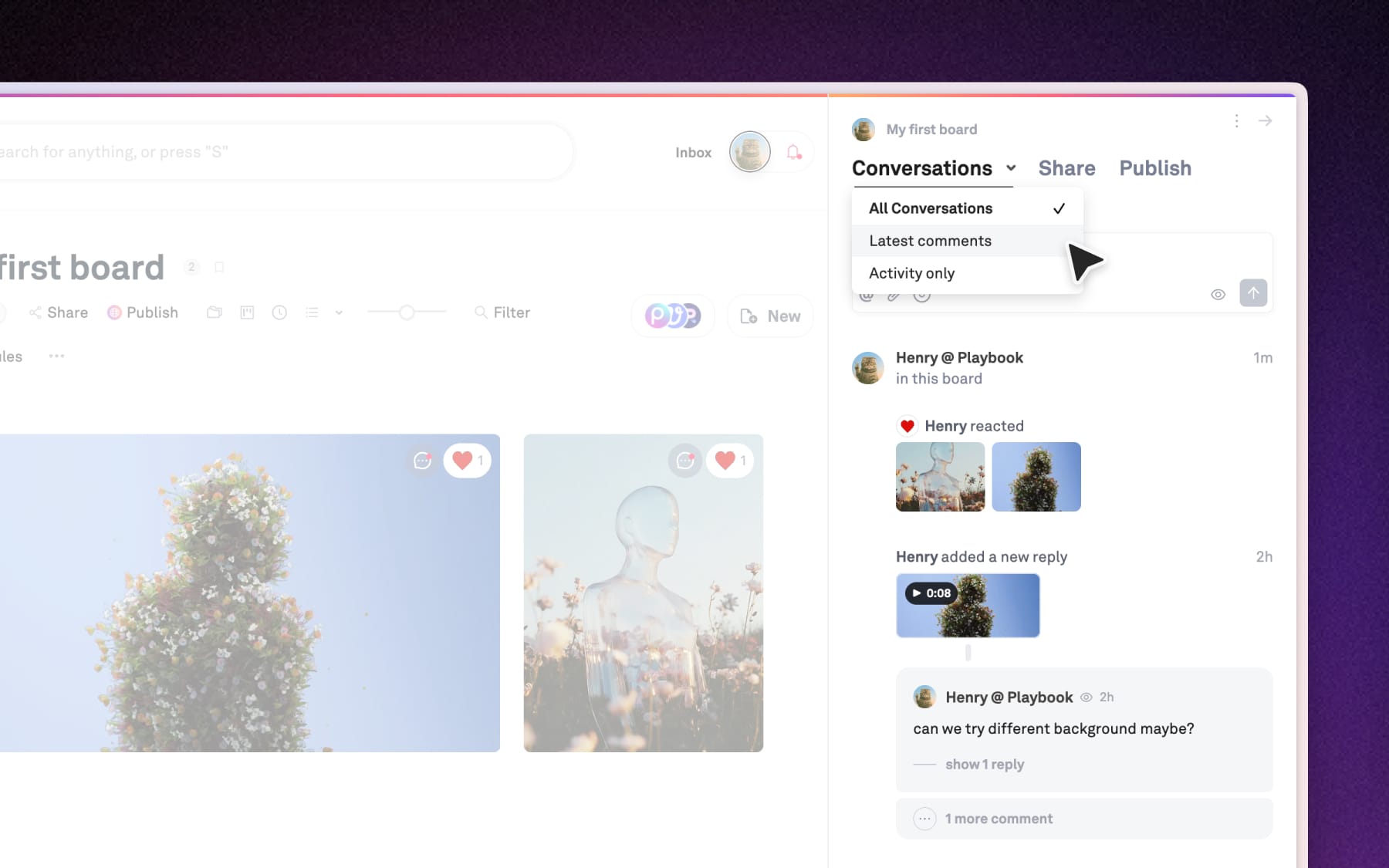
Conversations keep a live log of what's happening in your workspace, smartly grouping related activities every 24-hours. There are three distinct views to choose from depending on your workflows.
- Conversations: This is the default "big picture" view. It pulls in everything–comments, replies, and system activities like reactions or new upload–so you can see the full story of ongoing projects at a glance.
- Comments: Use this view to filter out the "noise" and only see active comment threads. This is the best place to catch up on feedback or reply directly without having to open individual assets.
- Activity only: This view focuses purely on actions taken within boards or workspace. It tracks things like who uploaded new files, moved assets, or reacted to work.
How Conversations work
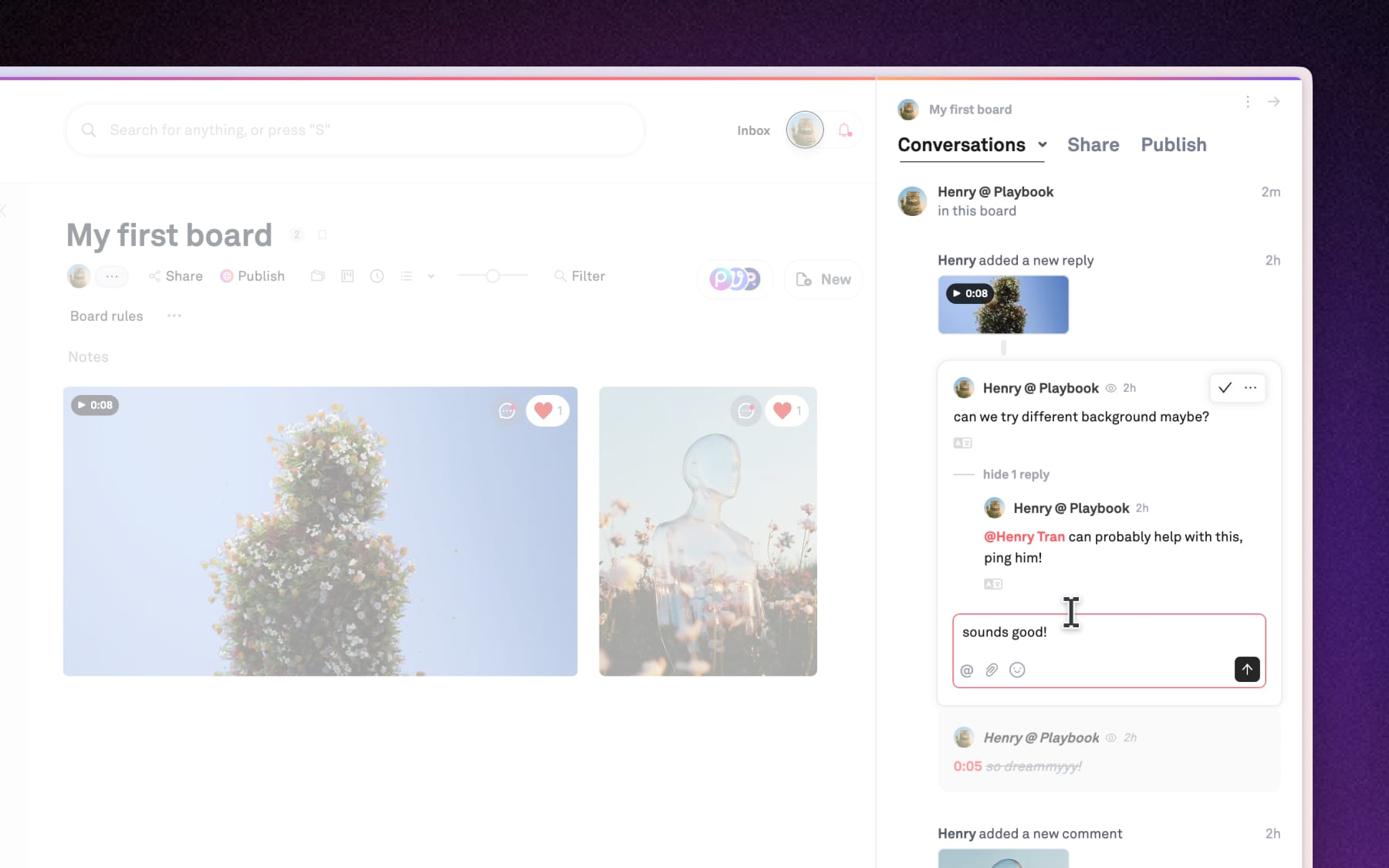
Conversations isn't just a static feed, there're actions you can take immediately to speed up your workflows.
- In-line previews: You can see thumbnails of specific assets being discussed or added recently in the feed, allowing you to grasp the context without navigating away from your current view.
- Direct replies: You don't need to click into every file to add your replies to a comment thread. Instead just click on any comment in Conversations and type your response directly into the thread.
- Board-wide discussion: While inside a board, you can use the comment box at the top of Conversations to start a board-wise discussion.
Following & unfollowing boards
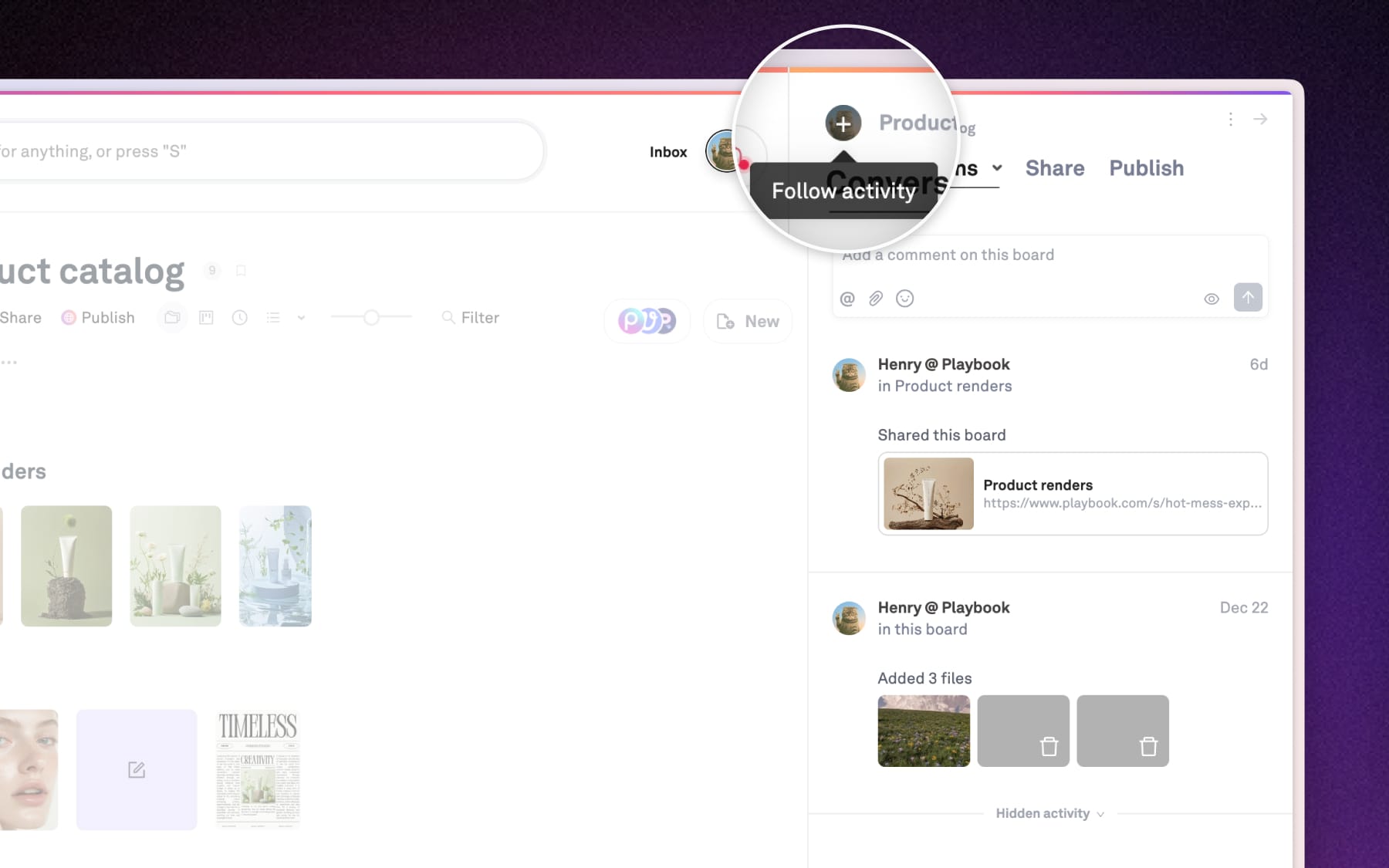
Anytime you upload a file or leave a comment, Playbook automatically "Follows" that board for you so you receive email updates on future activity.
- To unfollow: If you no longer need real-time updates for a project, click on your avatar appears at the top of Conversations to Unfollow.
- To manual follow: If you want to keep an eye on a board you haven't interacted with yet, hover over your avatar at the top of Conversations and click (+) to Follow.