
Filtering workspace or boards
Learn how to use Filters to narrow down your workspace across all boards or specific boards.
Whether you are managing a library of thousands or handing off final gallery to a client, Filters allow you to always find the exact version, fast.
Filtering All media
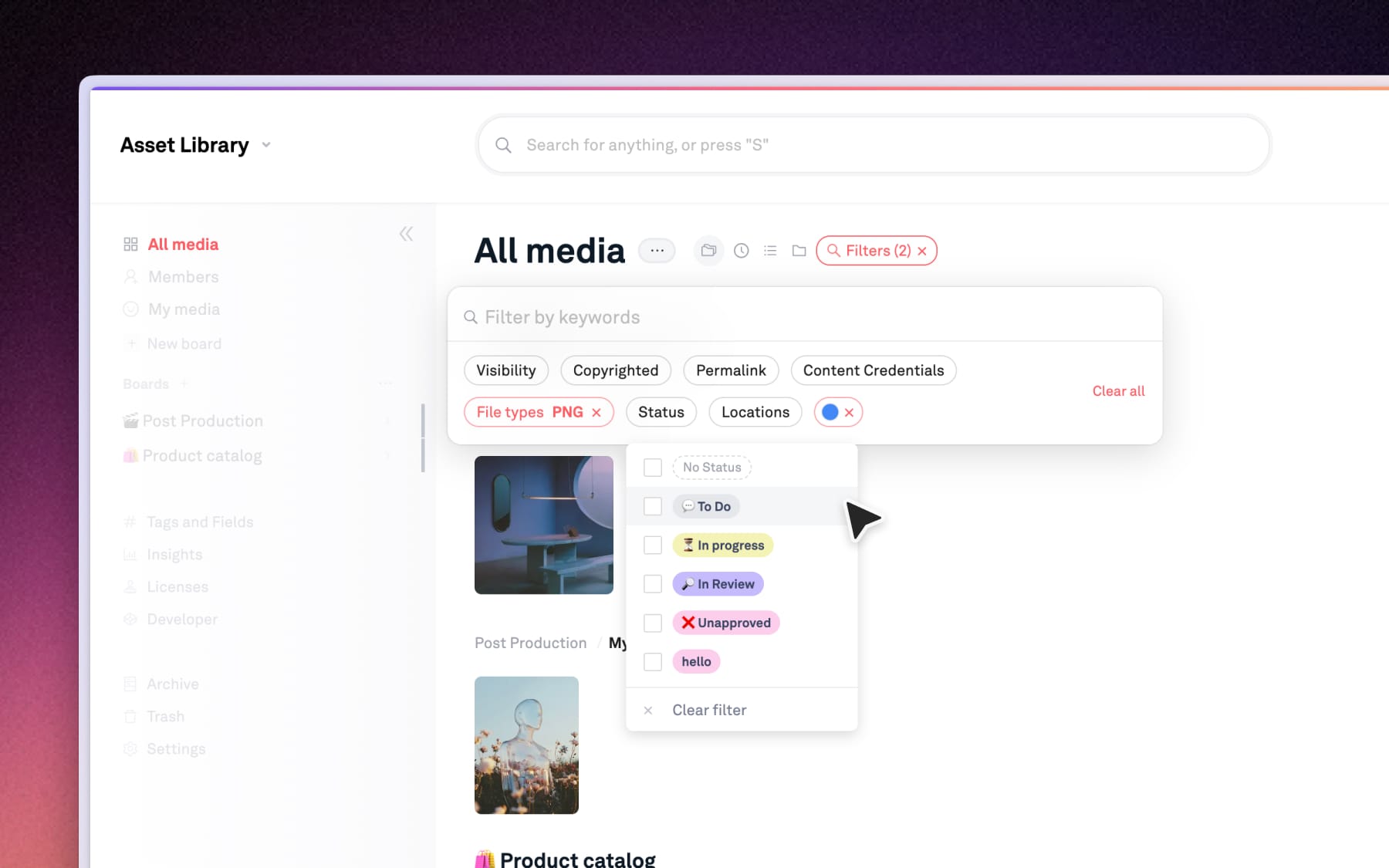
When you are in the "All media" page, our Filters allows you to scan everything across your workspace that matches specific criteria, regardless of where it is.
- Keyword or title: Type directly into the input to find specific file names or tags.
- File type: View only videos, PDFs, or other specific formats
- Status or fields: Filter by "Done," "In progress" or custom fields added to your workspace.
- Colors: Select a color to find assets with that dominant colors.
Board-level filtering
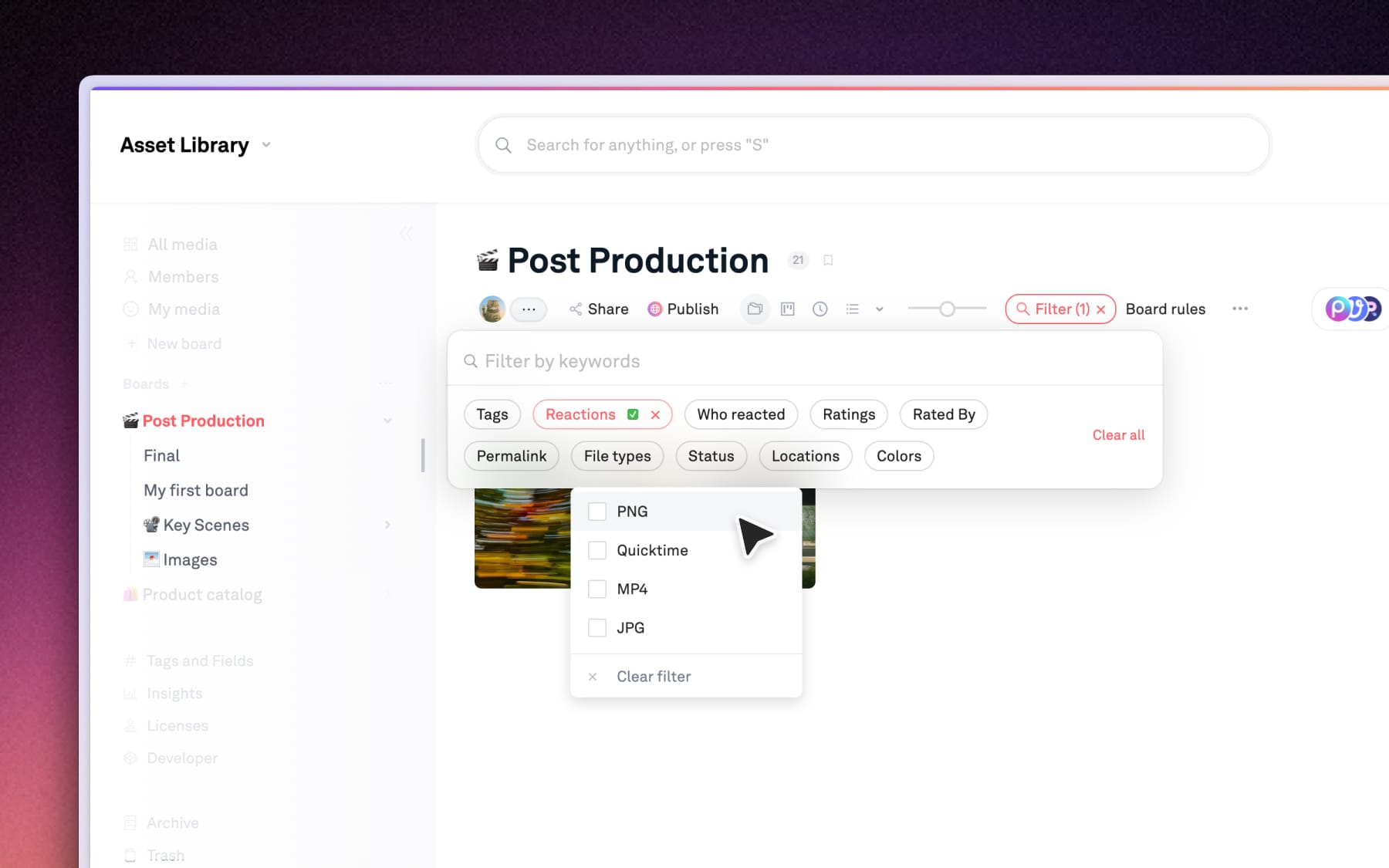
Filtering within a specific board (and its sub-boards) helps you quickly narrow down large collections into a scannable view. Within a board, you can use the same criteria as shown in "All media", plus more specific fields:
- Reactions and Rating: Filter by Star ratings or specific emojis Reactions to see what has been approved or prioritized.
- Who reacted: See assets that a specific teammate or external vendor have reacted with an emoji.
Filters on Shared boards
When you share a board, Filters is also available to your visitors by default in the top right corner. Allowing anyone to navigate and discover what they need independently, no matter how large your board is.