
Members, guests & permissions
Learn how to invite Members or Guests and manage their access with flexible permissions.
Instead of sending files back and forth, Playbook maintains as a collaborative workspace so you can invite your team, freelancers, or clients directly into the workspace as Members or specific boards as Collaborators. This ensure everyone is looking at the most up-to-date versions.
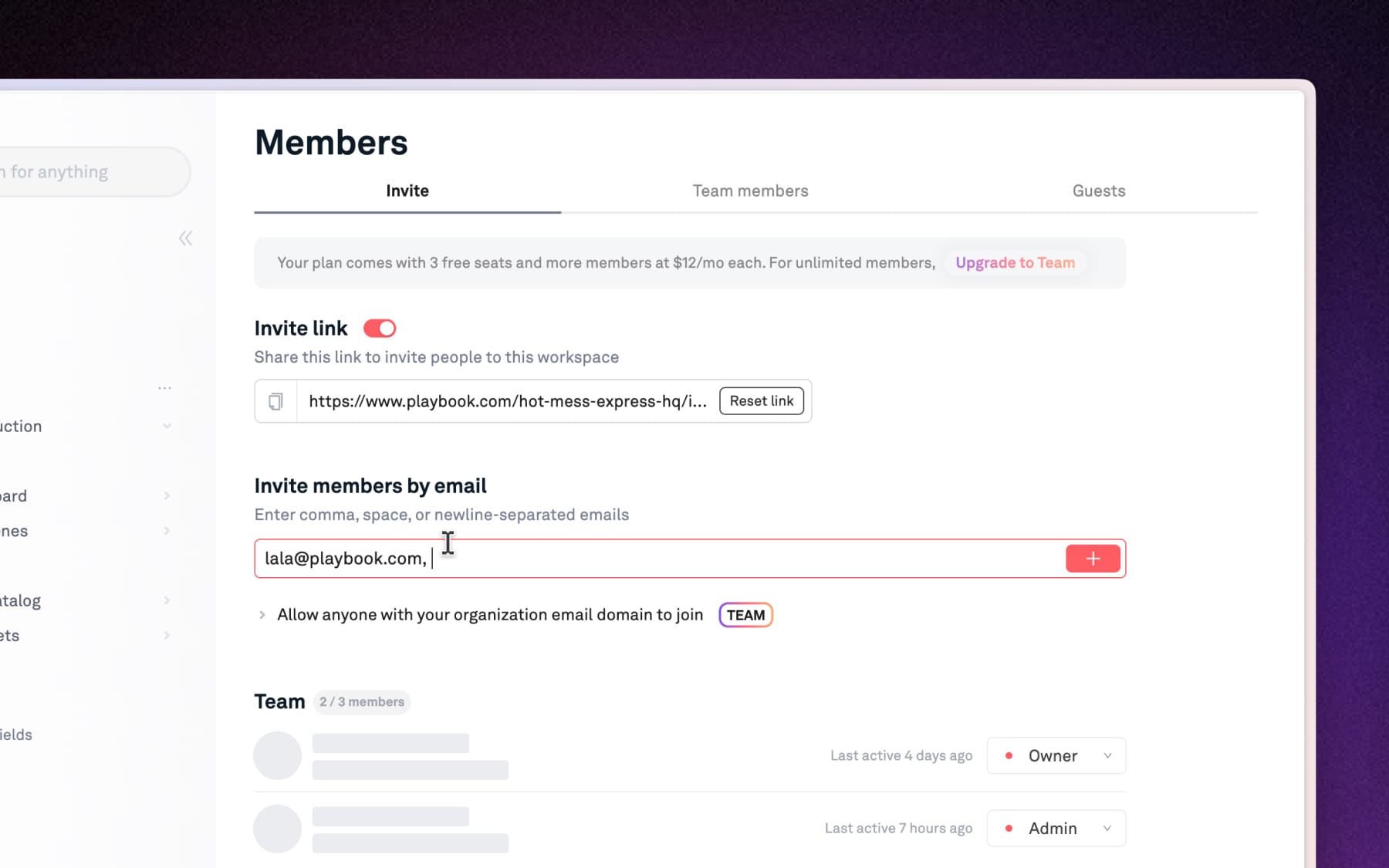
Inviting a Member (Workspace level)
Use this for your core team. Workspace members can see and manage all boards in your workspace by default.
- Open the Members page: Click on Members in the top of the left sidebar.
- Invite via email: Type the email address of the person you want to join, separate by comma.
- OR, use Invite link: Copy the link and share an invitation without having to enter emails manually.
Inviting a Guest (Board level)
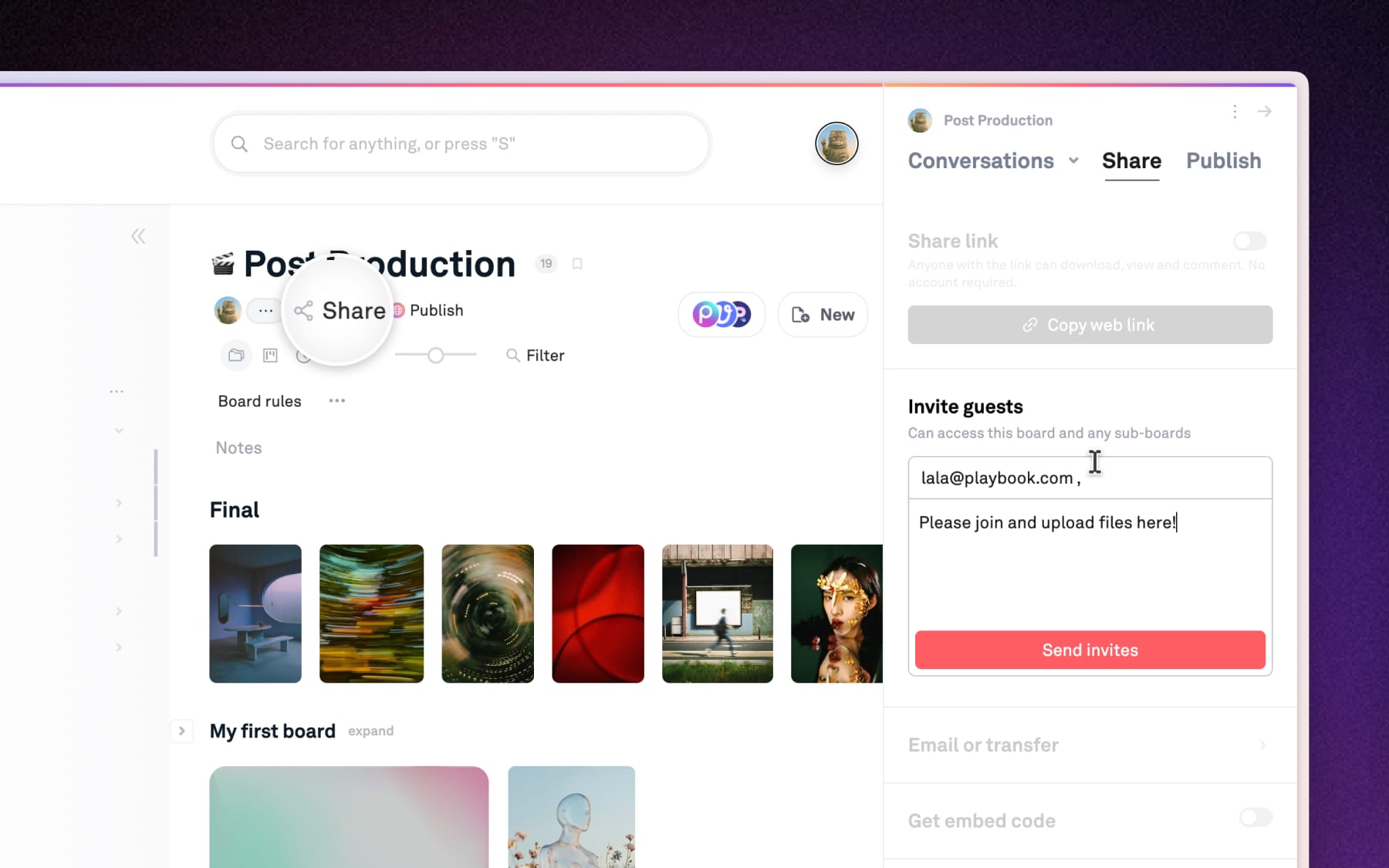
Use this for clients, vendors or freelancers. Guests only have access to the specific board (and its sub-boards) where they were invited.
- Open the Share menu: Navigate to the specific board and click the Share button at the top.
- Enter Email: Type the email addresses of people you want to invite with a message (optional).
Understanding permission levels
Playbook offers flexible roles to ensure the right access for your projects.
Workspace-level roles:
- Owner: Full legal and financial control over the workspace and billing, the only role that can permanently delete workspace.
- Admin: Can add/remove members, delete any board, and manage all workspace settings.
- Member: Can upload new assets, create boards, move files, and leave comments, but cannot adjust permissions or workspace settings.
- Viewer: Available only for Team plan – can see all boards and assets, leave comments but cannot manage assets.
Board-level roles:
- Guest (can manage): Can upload, move, delete, share and organize assets within that specific board as well as sharing that board.
- Guest (can view): Can only see assets and leave feedback with that specific board.