
More ways to chat
Learn about a couple different use cases and ways to use Playbook Intelligence to make more out of your assets.
AI-organization
You can prompt chat to re-organize or suggest a new structure for you files. Once Playbook is done organizing for you, you’ll be prompted to accept the board. The proposed board will show up in your inbox until you accept it.
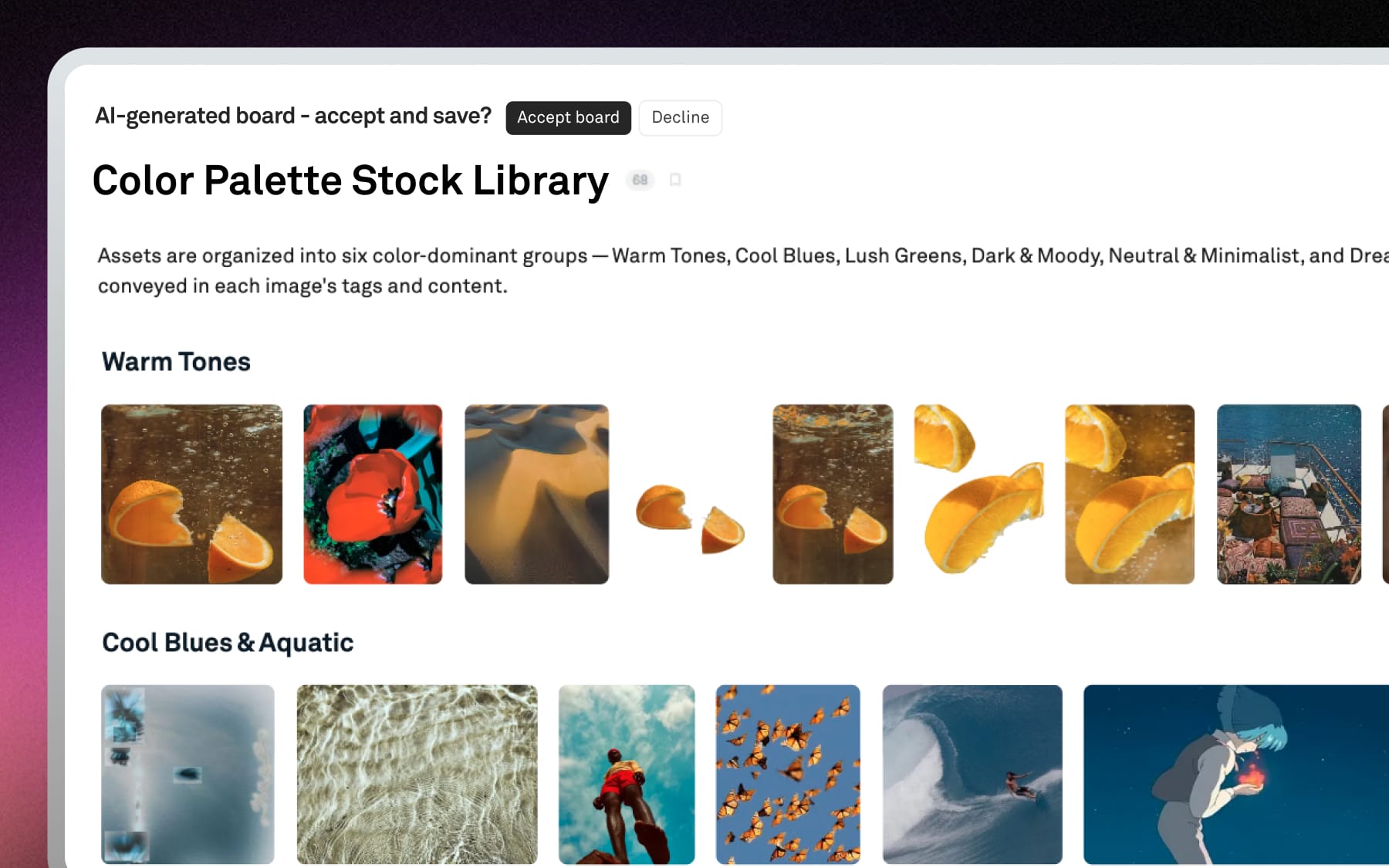
You can continue to make edits in the conversation until the structure is how you’d like. Accepting the structure will create a copy of your selected board/assets so you can always compare or edit further.
Simple photo editing and preparing for delivery
You can use chat to apply quick edits and generate shareable outputs all in one place. Instead of manually editing files or setting things up for handoff, prompt Playbook to handle these steps for you.
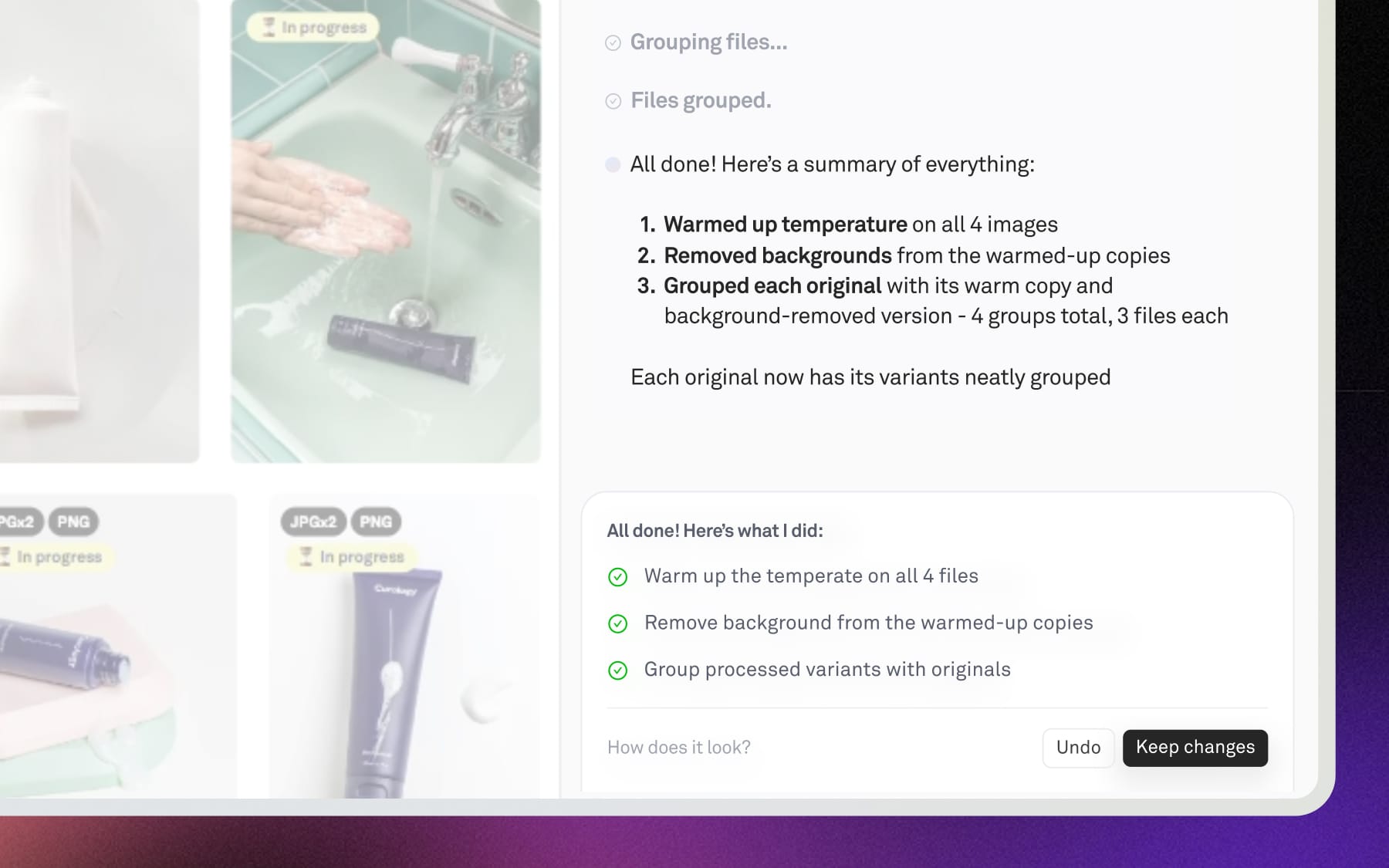
For examples, try these prompts:
- “Reduce contrast slightly and crop to 9x16 for instagram”
- “Remove backgrounds and group product shots”
Writing and generating ideas
You can use chat to generate ideas and creative direction based on the actual content in your workspace. Instead of starting from scratch, Playbook looks at your visuals — any referenced collections, products, or past work — and helps you build on what’s already there.
You can use the outputs directly in your shared and published pages, or continue to refine them directly in the conversation.
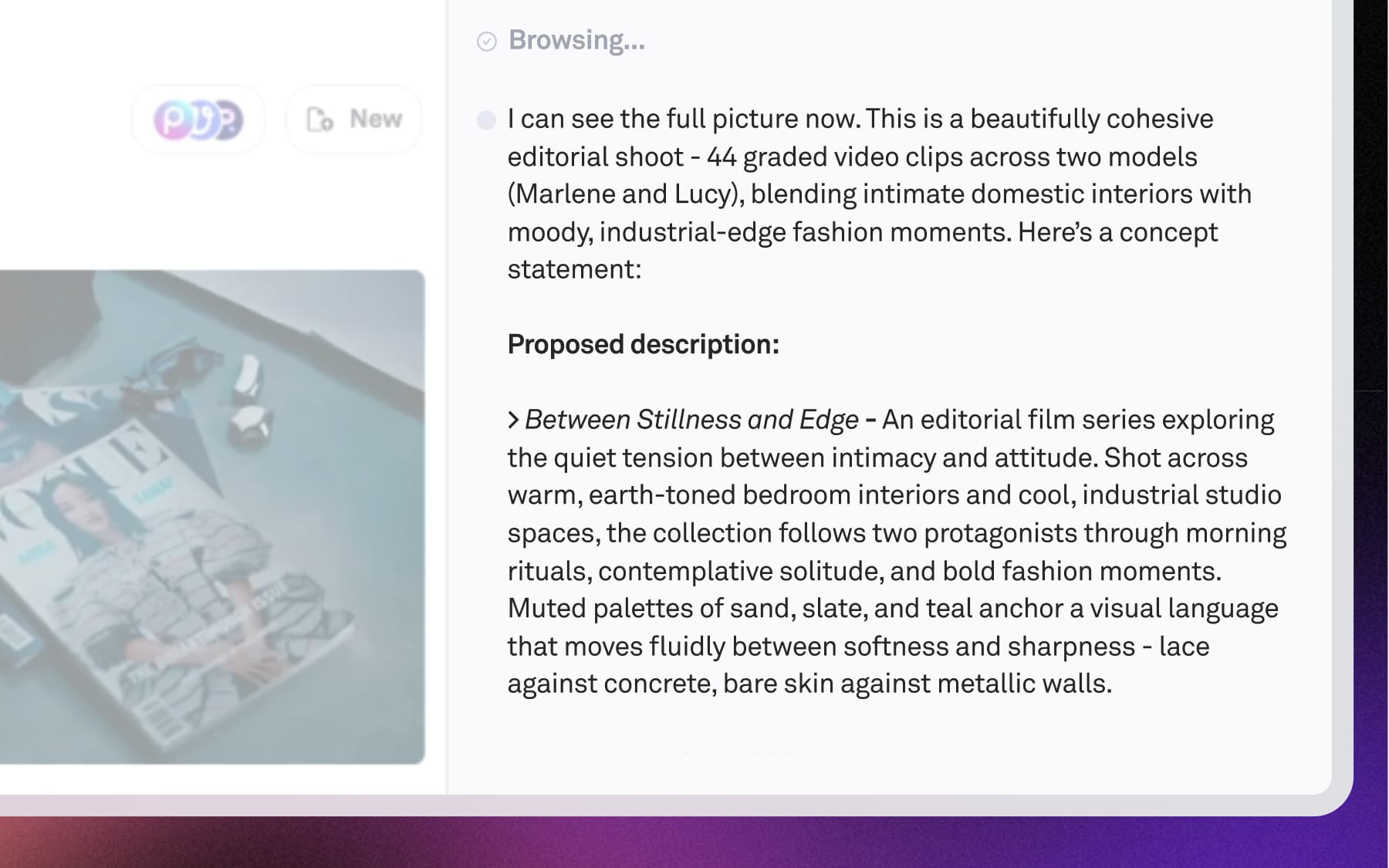
Some examples of what’s possible:
- Write descriptions, captions, or gallery copy. “Write a gallery description for this campaign”
- Generate campaign ideas based on your assets. “Suggest 3 marketing ideas based on these visuals”
- Identify patterns (colors, styles, themes). “Identify similar color palettes across this collection”
Learn and get help
Have more questions? Just ask directly in chat!
You can use Playbook Intelligence to learn about how to use Playbook, get guidance on best practices, and troubleshoot issues as you work. Instead of searching through docs or switching contexts, you’ll get answers tailored to your workspace and use case.
If something isn’t working as expected or you run into a bug, just let us know in the conversation. We'll file a support ticket for you directly based on your message so you don’t have to switch tools or repeat context.