Moving, copy & batch actions
Learn how to use Batch actions to move, copy, and organize thousand of assets in seconds.
Whether you need to reorganize an entire board or just duplicate a few version to share with client, our Batch actions tools allow you to handle hundreds of files as easily as one.
How to move or copy assets to boards
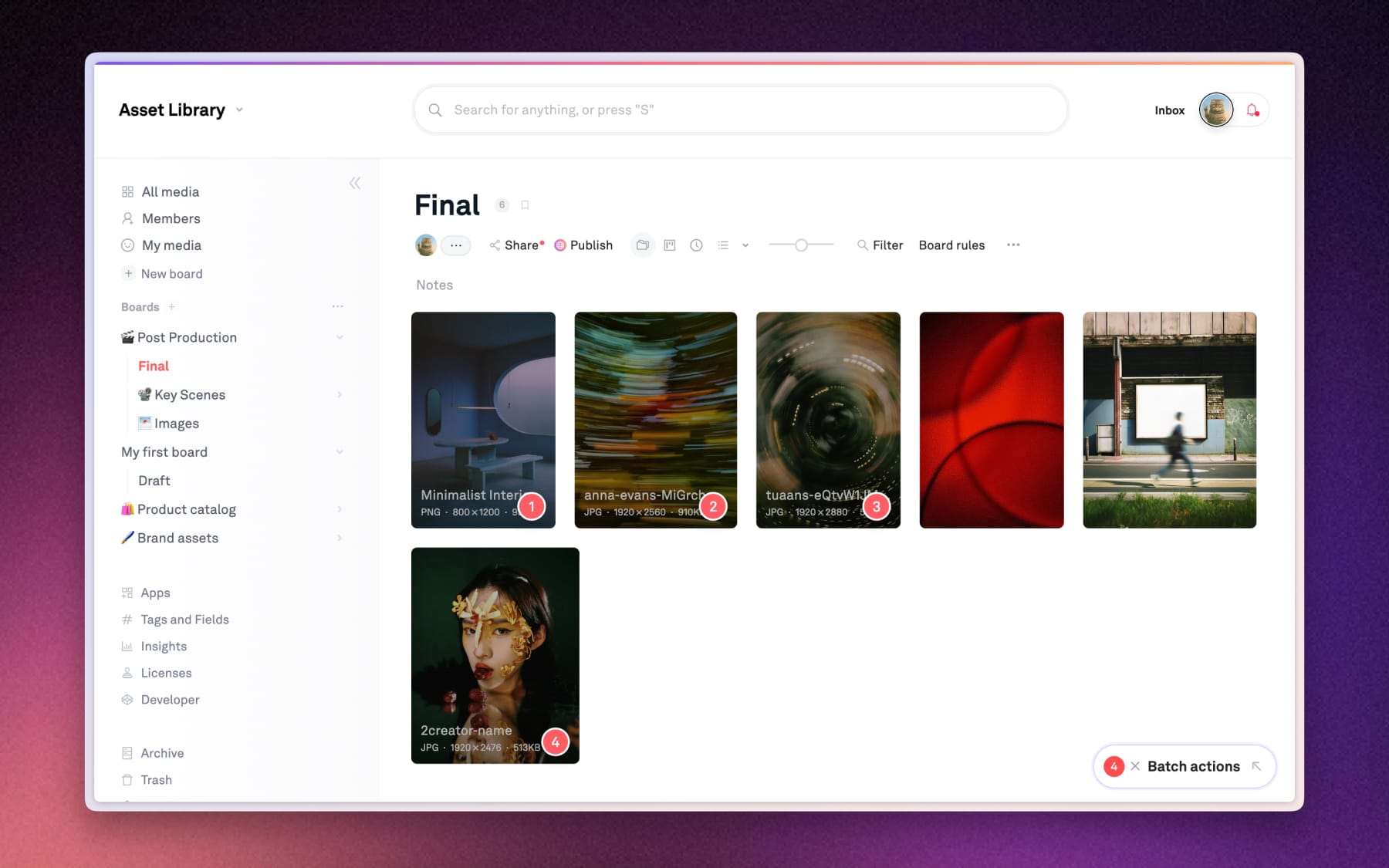
To relocate assets, select them to trigger the Batch action. You can 'Move' them to a new board, or 'Copy' them to multiple boards without taking up extra storage.
Step 1: Multi-select your assets
Click the checkmark on the assets to select multiple assets, or drag to select.
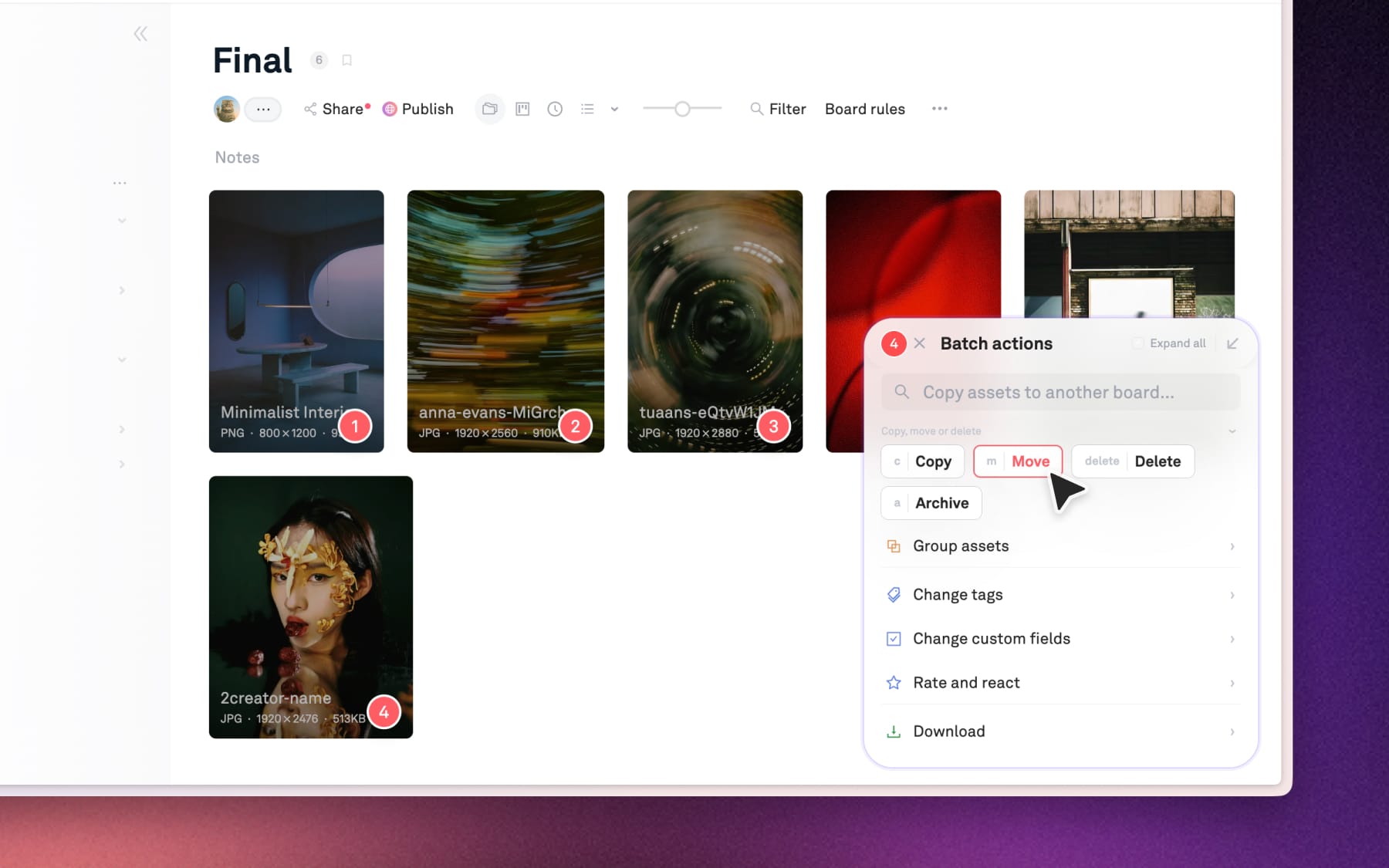
Step 2: Choose 'Move' or 'Copy'
Once you've finished selecting assets:
- Move: Removes the file from the current board and puts it in a new one.
- Copy: Keeps the files in the current board but makes it appear in other boards as well.
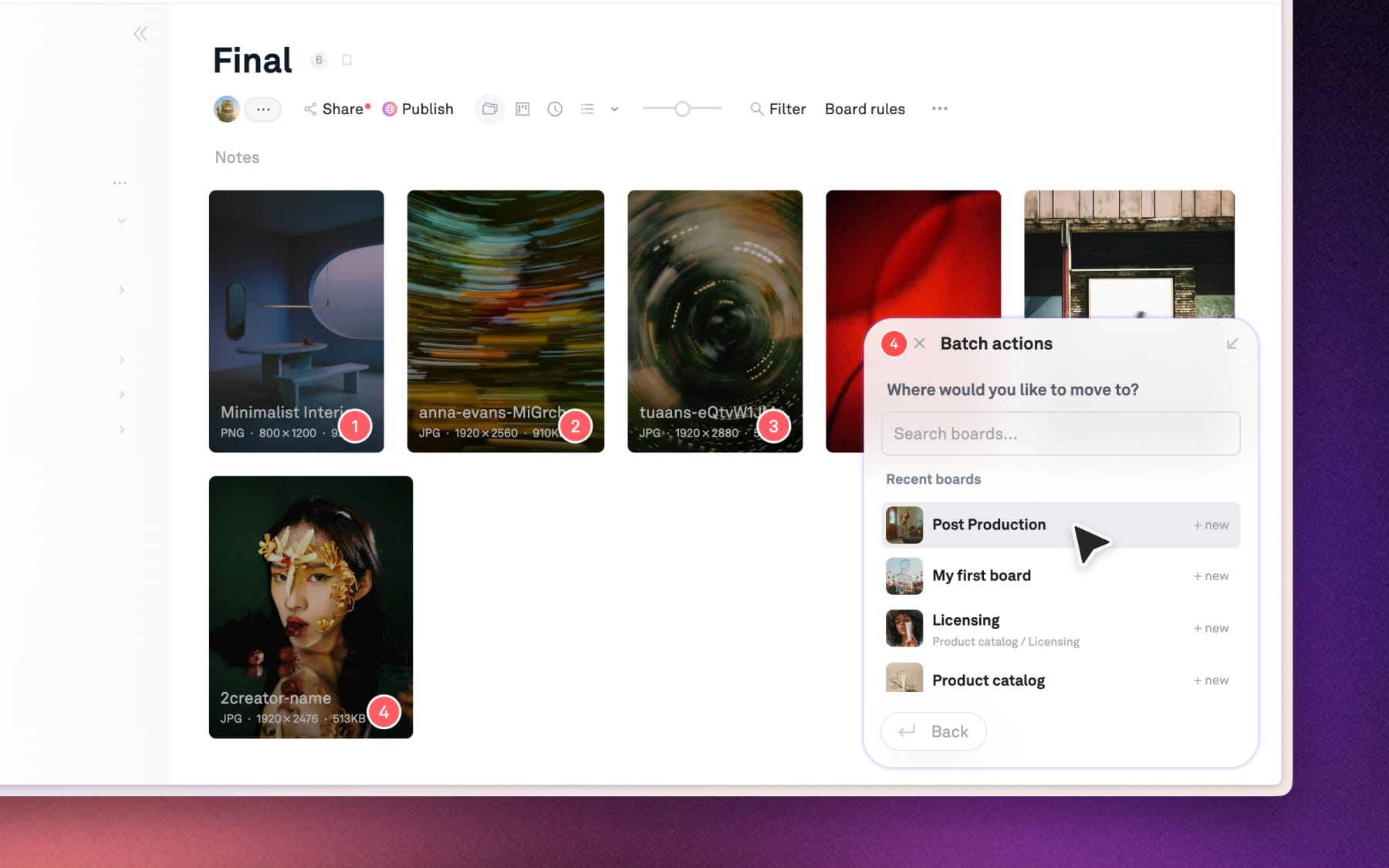
Step 3: Pick a board as destination
A list of recent boards will show within Batch actions, or use the search bar to quickly find boards. Select the board that you want the assets to move.
Tips: Instead of clicking on the board name, select the +New button on the right side of any board name to create a dedicated sub-board, so you can keep your workspace tidy without ever breaking your flow.