Star ratings & reactions
Learn how to use Star ratings for objective culling and Emoji Reactions to speed up your selection and approval process.
In Playbook, Star ratings and Emoji reactions are the two visual tools that help you and your collaborators or clients rank and approve work without the need for long email chains.
How to Star rating
Star ratings are your best tool for internal culling. They help you quickly 'grade' large batches of files and narrow down your final selections.
- How to rate: Hover over an asset in gallery view, then hover over the smiley icon in the top right to reveal star ratings. Or open the asset in details view and use the stars at the top of the Info panel.
- How it works: You can assign anywhere from 1 to 5 stars, and later filter for the assets with most stars to make your selection.
How to React with emojis
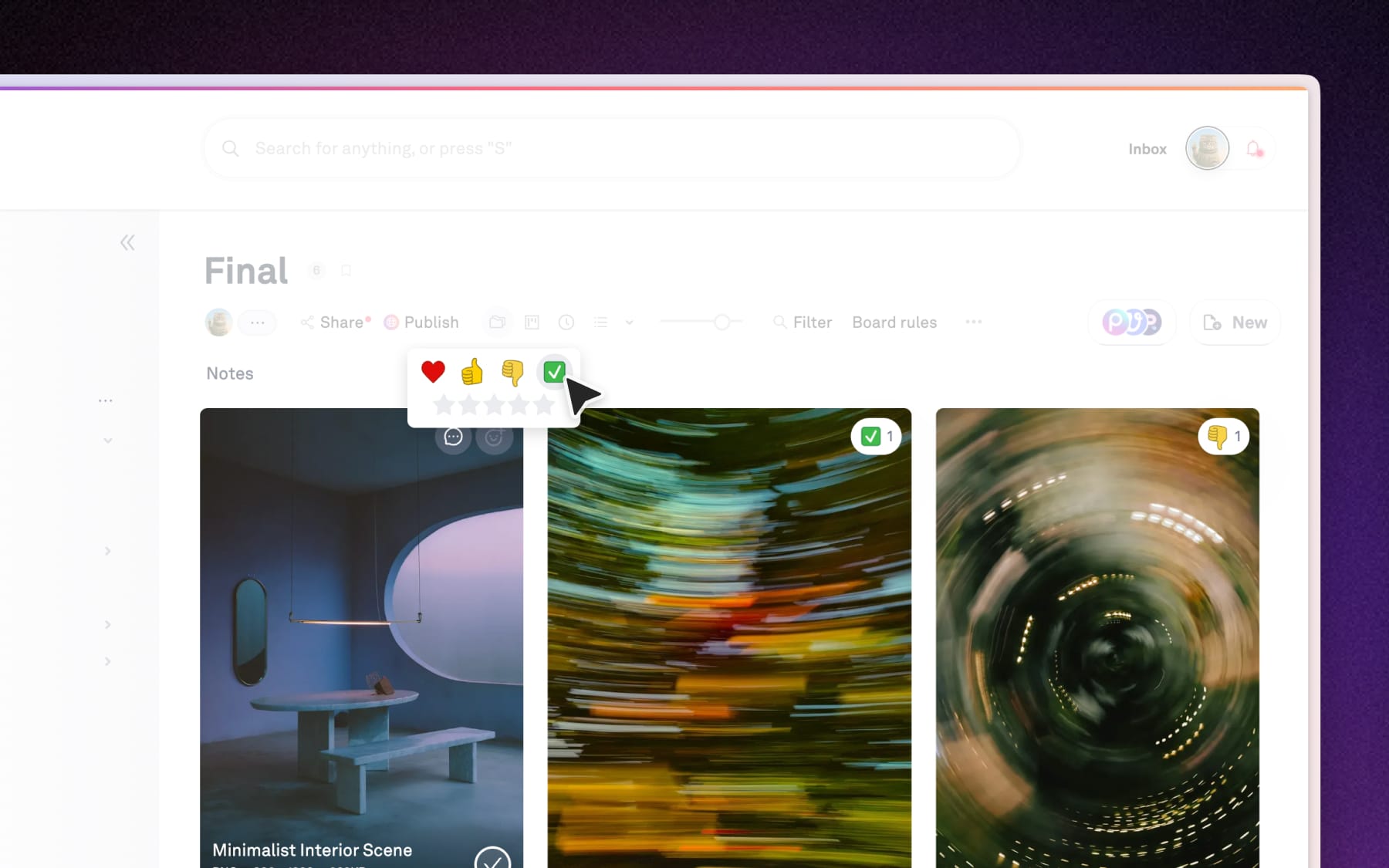
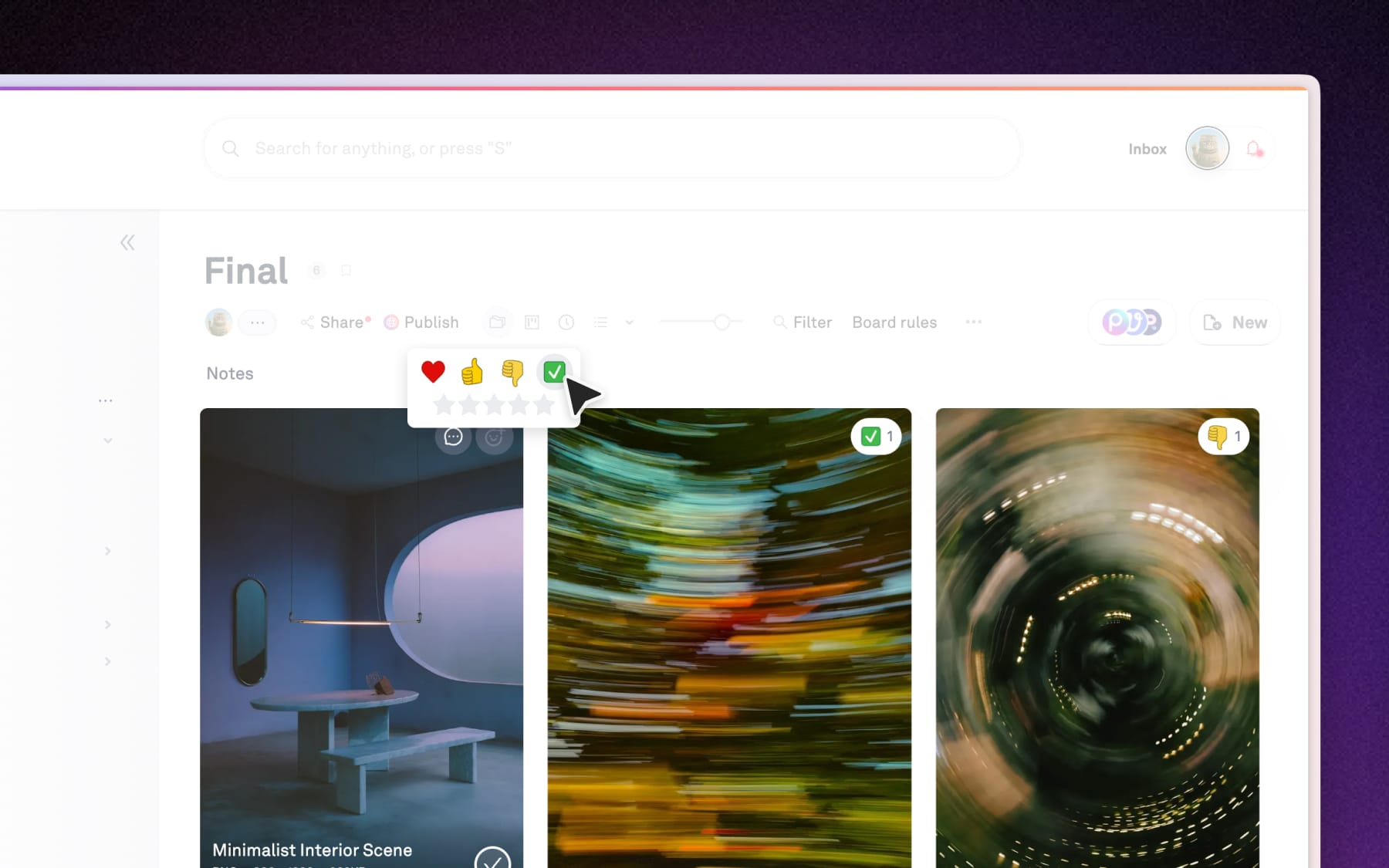
While stars are for grading, Emoji reactions (we like to call it Reactjis) are for quick communication. They are the fastest way to acknowledge an update, one-click approval.
- How to react: Hover over an asset preview in gallery to see emojis like heart (♥️) for favoriting or the checkmark (✅) for approving.
- Visual tally: If multiple people react to the same image, Playbook shows a count so you can easily turn your board into a real-time voting system.
Filtering for your favorites
Once you've rated or reacted to your assets, you can use the Filter within your board to instantly narrow down the winners and archive the clutter.
- Open Filter: Click Filter button at the top of the board
- Filter by Star rating: Select a specific star count to show only your highest-rated assets.
- Filter by Reaction: You can also filter by specific emojis to see what has been officially approved.