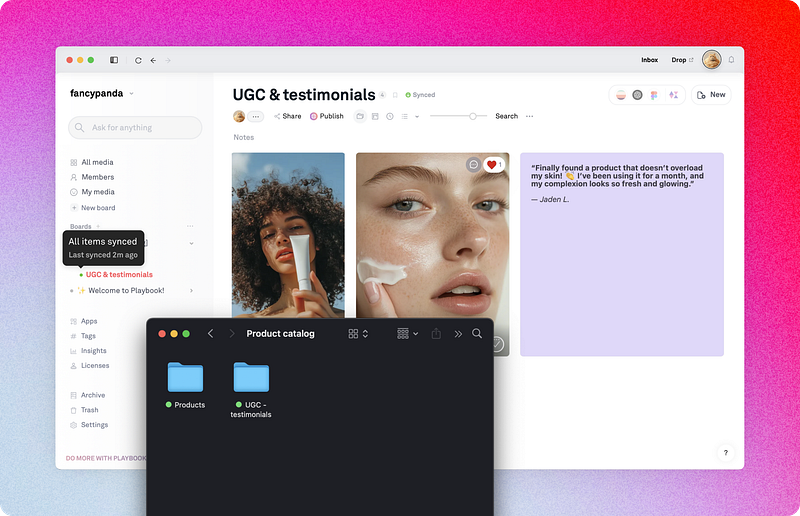
Desktop Sync and Adobe integration
Learn how to use Desktop Sync to keep online files up to date with your local and vice versa, natively integrate with apps like Adobe, maintain offline access, and also upload large batches of files – perfect for a fresh photoshoot. Available on Pro plan and above.
Whether you're jumping between Photoshop, Illustrator, or working offline on a flight, the Playbook Desktop App keeps your files up-to-date and accessible — no manual uploads required.
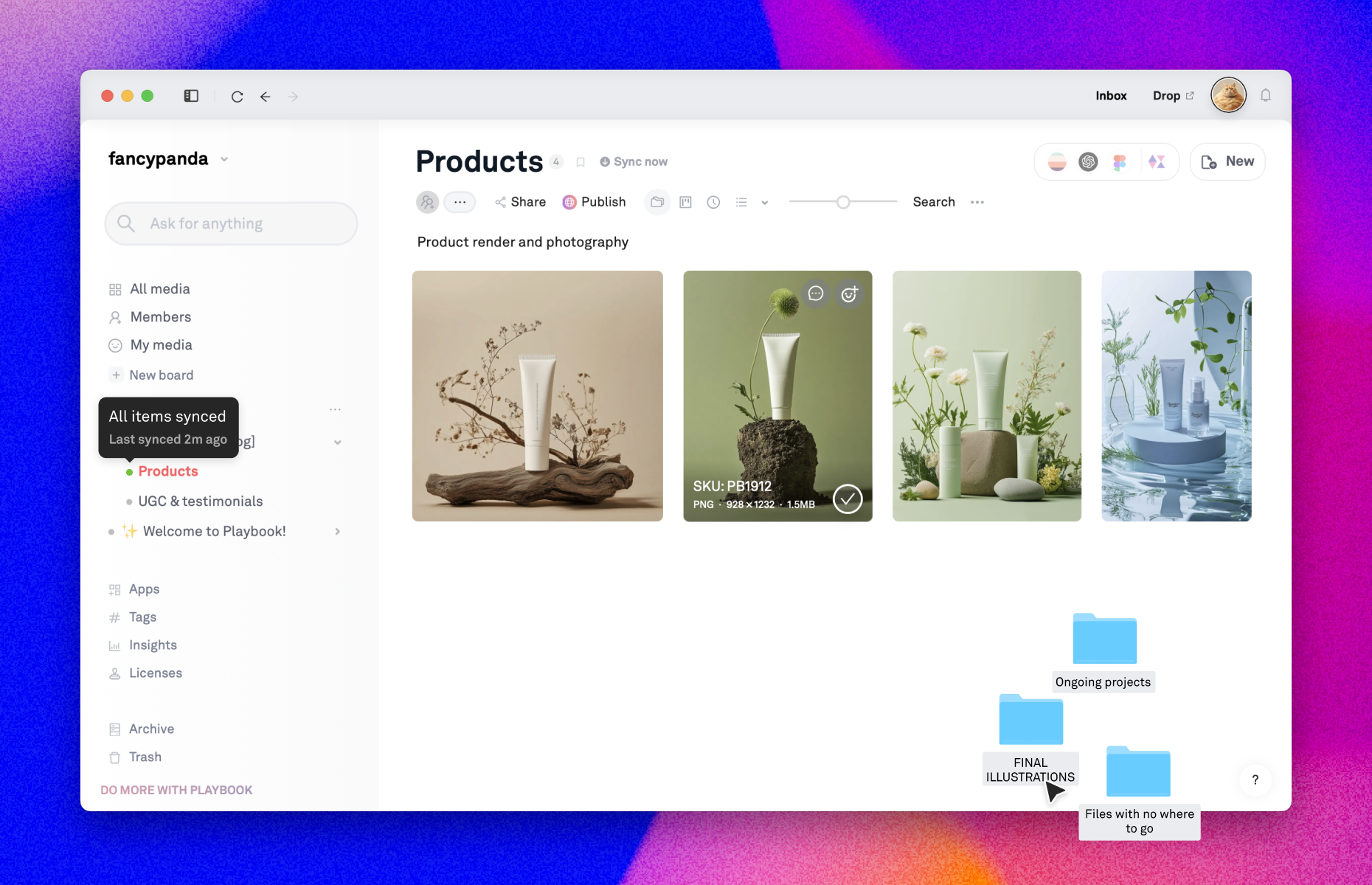
Step 1: Download the app
Head to playbook.com/desktop and choose the version for your system — Mac OS or Windows. Once the download finishes, open the installer and follow the prompts to add Playbook to your computer.
Step 2: Sign in and pick your boards to sync
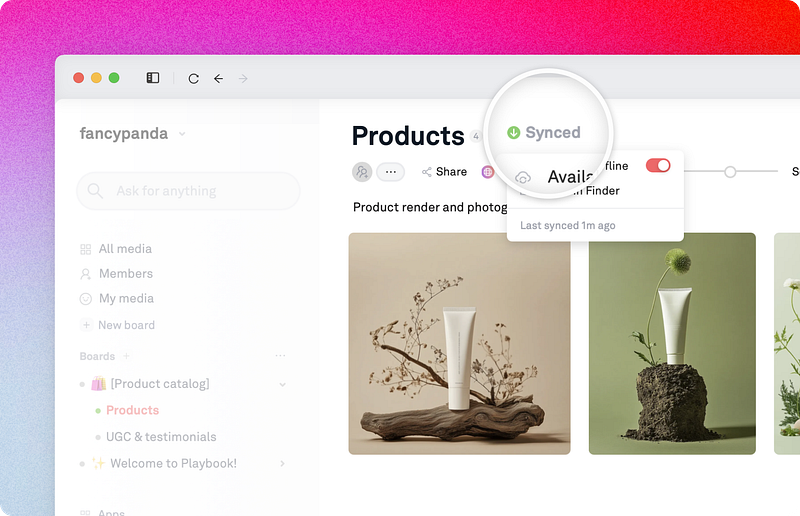
Open the desktop app and log in with your Playbook account. Choose which boards you want to make available offline — Playbook will only save the files you select, so you stay in control of your storage space.
Clicking "Open in finder" also leads you to your local directory where your Playbook board is synced.
Tip: Look for the green checkmark next to your files to confirm they're fully synced locally.
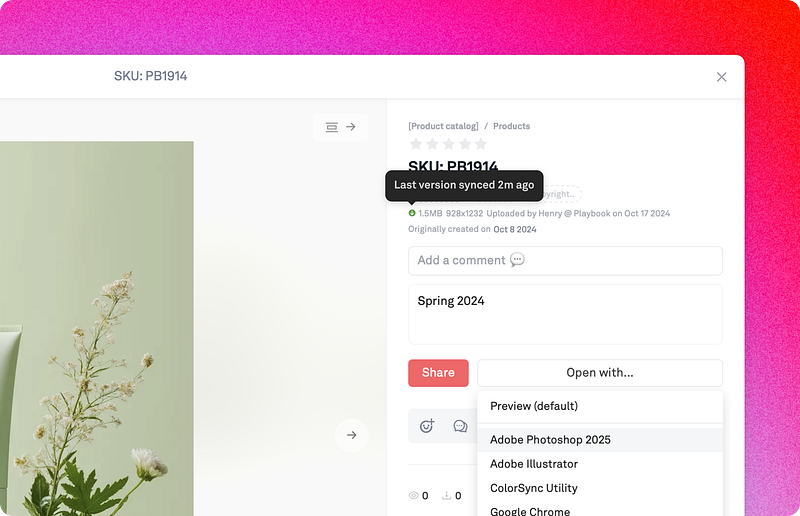
Step 3: Open files directly in your native editing app (like Adobe)
If you make edits to your local files in a synced board, those changes will be saved automatically and uploaded to the cloud. You can open any synced file right in Photoshop, Illustrator, InDesign, or any other Adobe app you use.
Step 4: Save and let Playbook do the rest
When you're done editing, just hit save like you normally would. Playbook automatically syncs your changes back to your workspace, so your team sees the latest version — no exporting, re-uploading, or version-naming required.
Tip: Working offline? No problem. Keep editing as usual, and Playbook will push all your changes the next time you're back online.
Step 5: Upload files via a synced board
The sync works both ways. Any file you drop into a synced board on your computer will automatically upload to Playbook — no need to open the web app. This is especially handy for large uploads: just drag your local files into the synced board folder on your desktop, and Playbook will handle the upload in the background while you keep working.
Tip: This is the fastest way to move big batches of files (like a full photoshoot or project folder) into Playbook.