
Slack
Learn how to connect a Playbook board to a Slack channel so uploads and comments relay both ways.
Connecting a board to Slack puts the work where the conversation already is. New uploads appear in the channel, and this is a two-way relay: a reply in the Slack thread comes back into Playbook as a comment on the asset, so feedback given in passing is not lost from the file it belongs to.
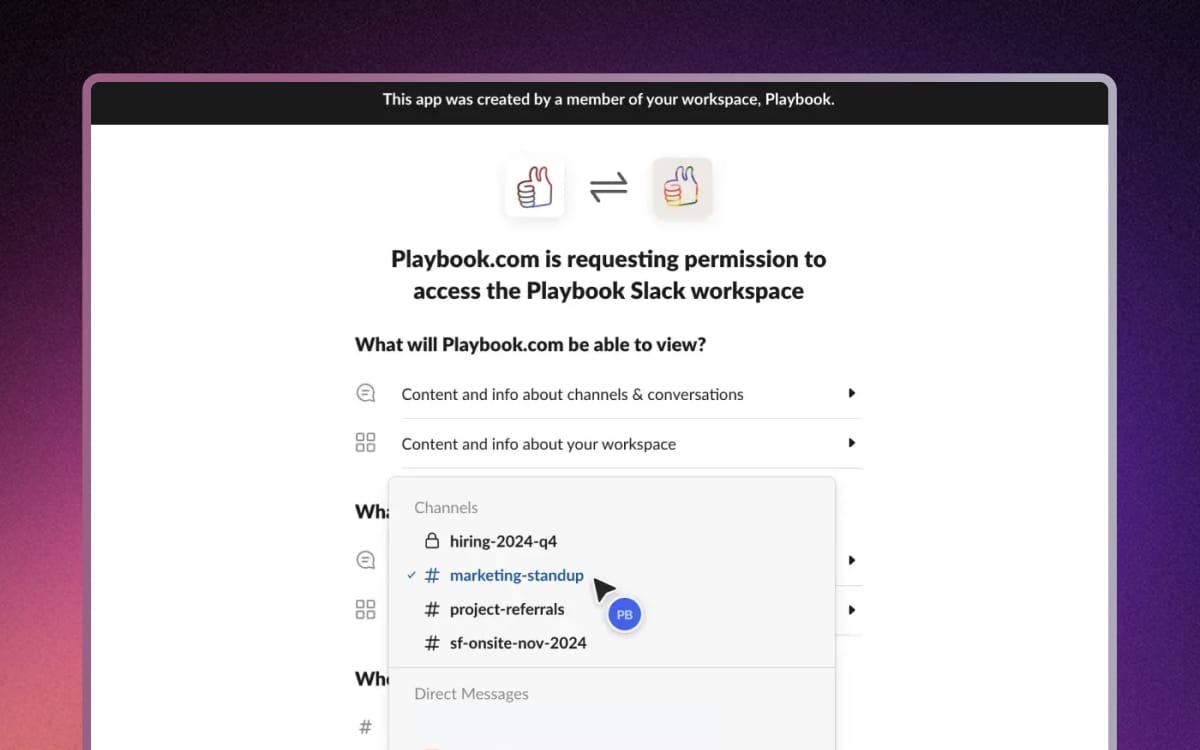
Connect a board to a channel
Start from the board you want the channel to follow.
- From the board menu: click the ... menu on any board and choose Connect to Slack.
- Pick a channel: choose the Slack channel and confirm. Connect the channel the project already talks in rather than making a new one.
What relays, in both directions
- Uploads out: new assets on the board post to the channel as they arrive.
- Comments out: comments made in Playbook relay to the thread.
- Replies back in: reply in the Slack thread and it returns to Playbook as a comment on the asset. You can also click through to the workspace instead.
For rule-based automation across other tools, see Zapier.