
Import sync
Learn how to transfer files from other cloud storage and legacy DAMs into Playbook
Playbook integrates with a growing list of other storage providers and DAMs so migration and sync is simple even with a large library.
Cloud storage imports
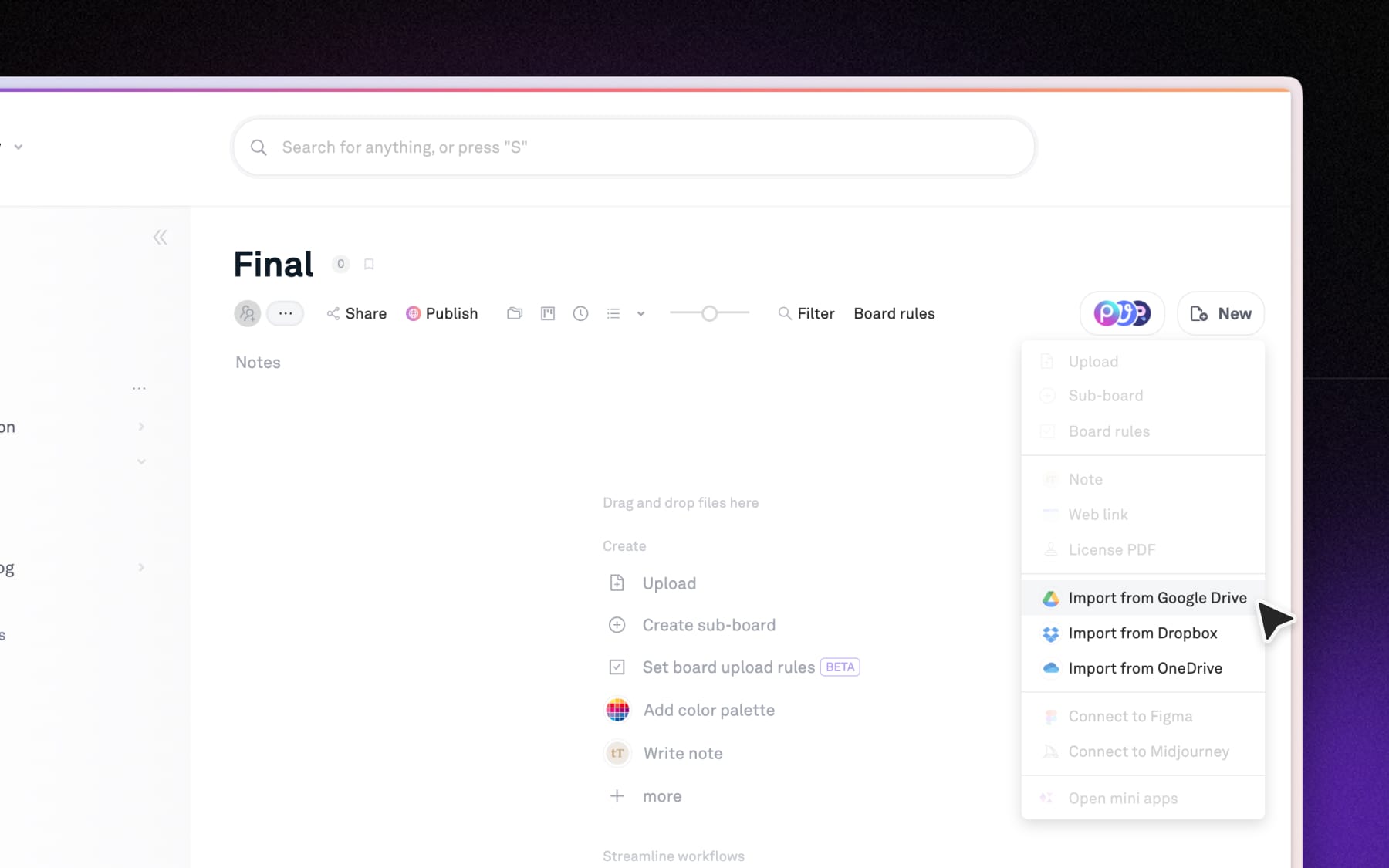
Bring your existing files into Playbook directly from Google Drive, Dropbox, and OneDrive. These sync-based imports let you pull in assets without re-uploading from scratch, keeping your libraries up to date as your source files change.
Transfer from another DAM
Moving off Air, Canto, Brandfolder, Bynder, SmugMug or a similar platform is not a self-serve job, and you should not have to make it one. Our team runs the migration for you.
- We do the work: you point us at the source, and we bring the library across for you. A typical migration completes in around two weeks, including large libraries.
- Structure comes with it: the point of a migration is arriving organized. Boards and folder hierarchy carry over rather than landing as one flat pile of files.
- Not just DAMs: the same applies to a library scattered across shared drives and local storage, which is the more common starting point.
For teams migrating from other platforms not listed, white glove migration and onboarding support is available on Enterprise plans. To get started, talk to your customer success manager, or contact us to learn more.
Teams who have already made the move
- Outdoor Living Today came from Air, bringing across a 1TB library of more than 33,000 assets. They described getting their assets out of Air and into Playbook as "essentially stress-free".
- Shakti Mat consolidated Dropbox, Google Drive and scattered internal storage into one workspace: 25,000+ assets serving teams across three markets, in time to run a full global rebrand from it.
Browse the full list of Playbook integrations →