
ComfyUI
Learn how to save ComfyUI renders straight to a Playbook board and load workspace assets back into your graph.
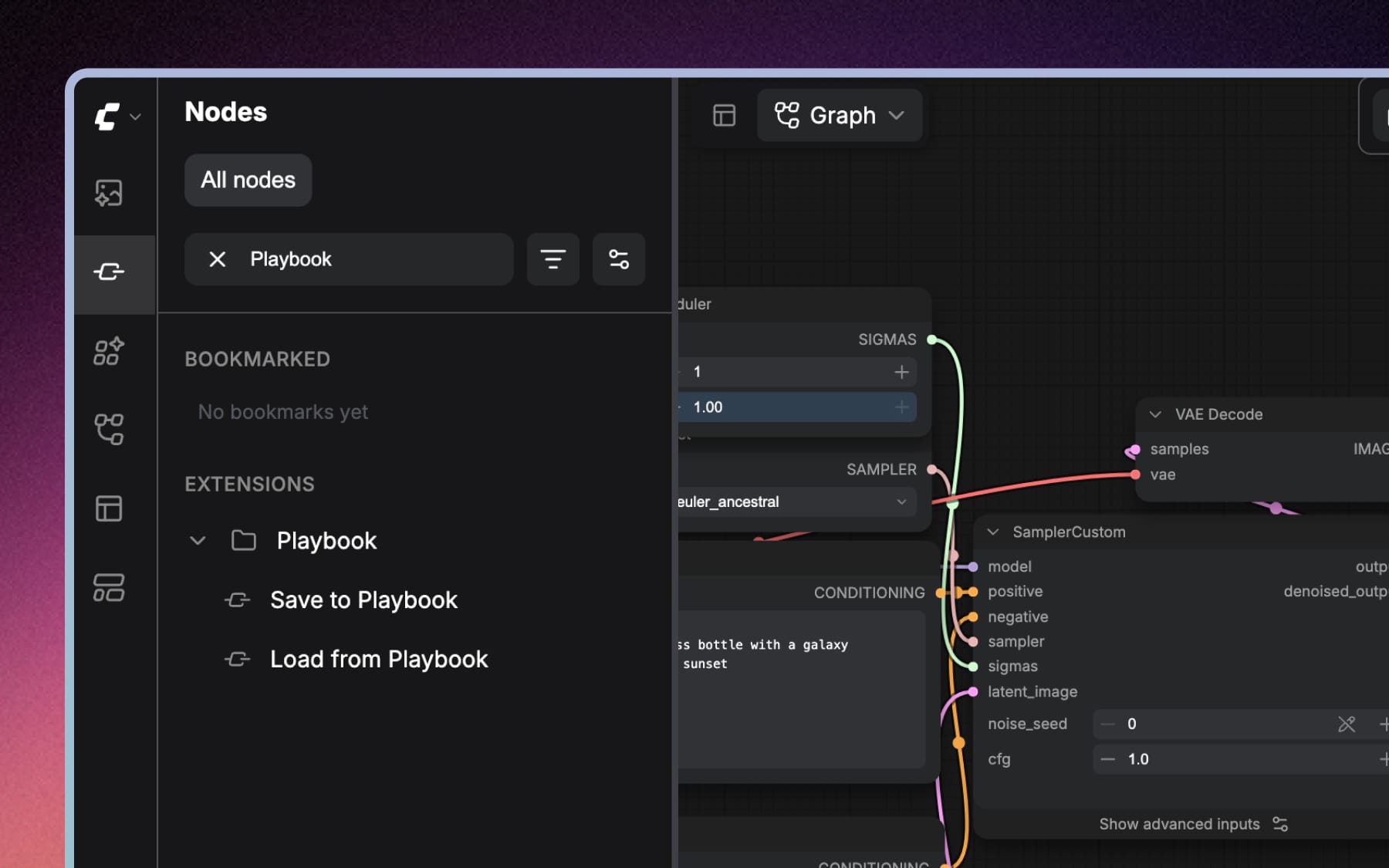
The Playbook node pack adds two nodes to ComfyUI: one that uploads a render to a board the moment a graph finishes, and one that pulls an asset out of your workspace and into the graph. Set the board and the metadata once on the node, or wire them in from elsewhere, and a long batch files itself while you are away from the machine.
Install the node pack
Install Playbook from the ComfyUI Registry, or search for it in ComfyUI Manager. Restart ComfyUI afterwards.
- Where to find the nodes: open the Nodes panel and search for Playbook. Both appear under EXTENSIONS.
- Save to Playbook: uploads images that reach it and returns their asset tokens.
- Load from Playbook: fetches an asset from your workspace so you can use it as an input.
Connect your workspace
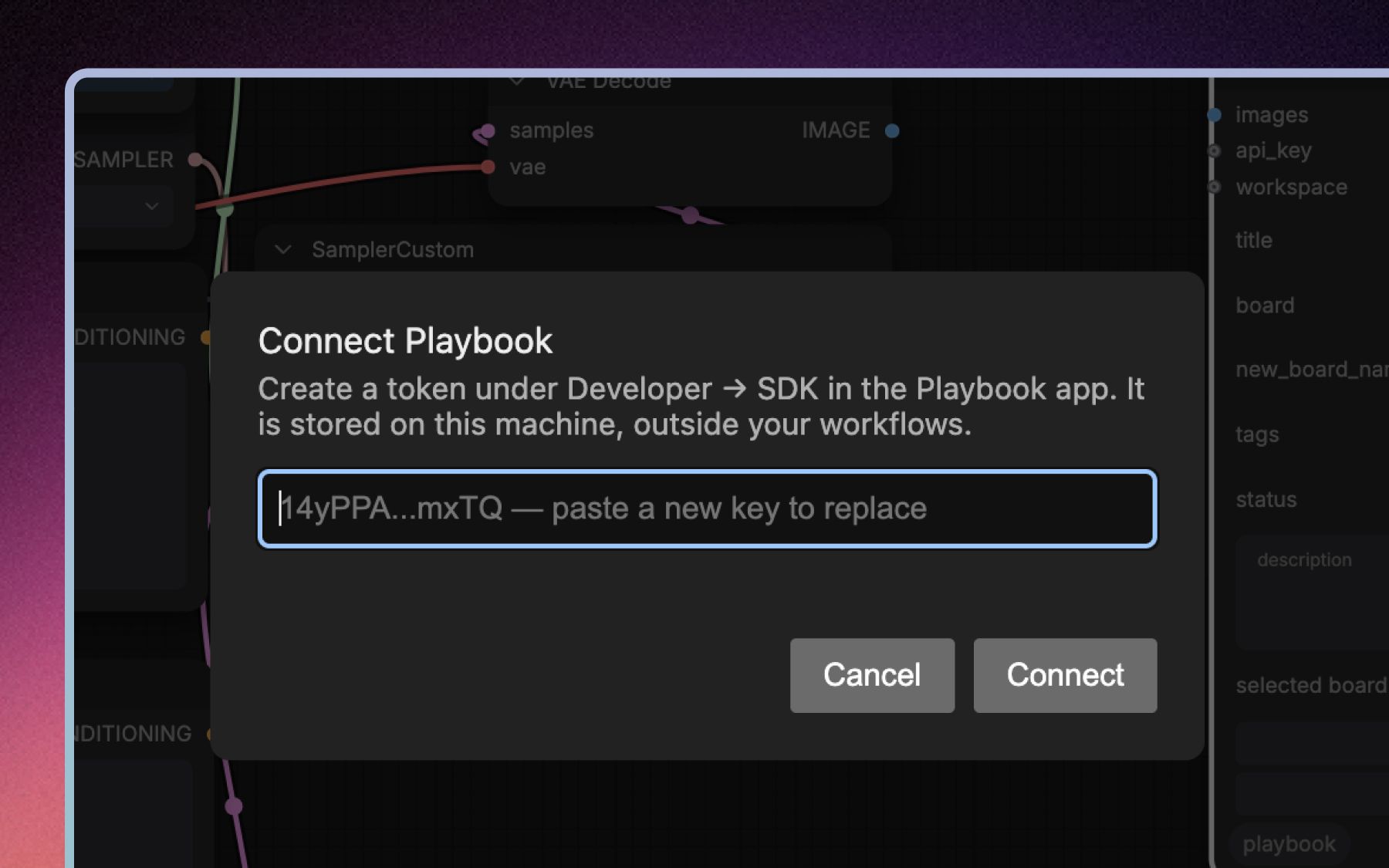
The first time you use either node, click Connect Playbook.
- Create a token: in the Playbook app, open the Developer tab and create one under API/SDK. The node's dialog calls this "Developer → SDK", which is the same place.
- Paste and connect: the key is stored on the machine running ComfyUI, outside your workflows, so it is not saved into a graph you share or export.
- You do not need to upgrade. Tokens are included on Free, Pro, Team, Business and Enterprise, so the node pack works without a paid plan. The exception is Artist & Designer, which has no API access. On Free a token expires after 30 days, and each upload or fetch from the graph counts against your monthly API allowance, so a large overnight batch is the case worth checking. See pricing.
Wire it into your graph
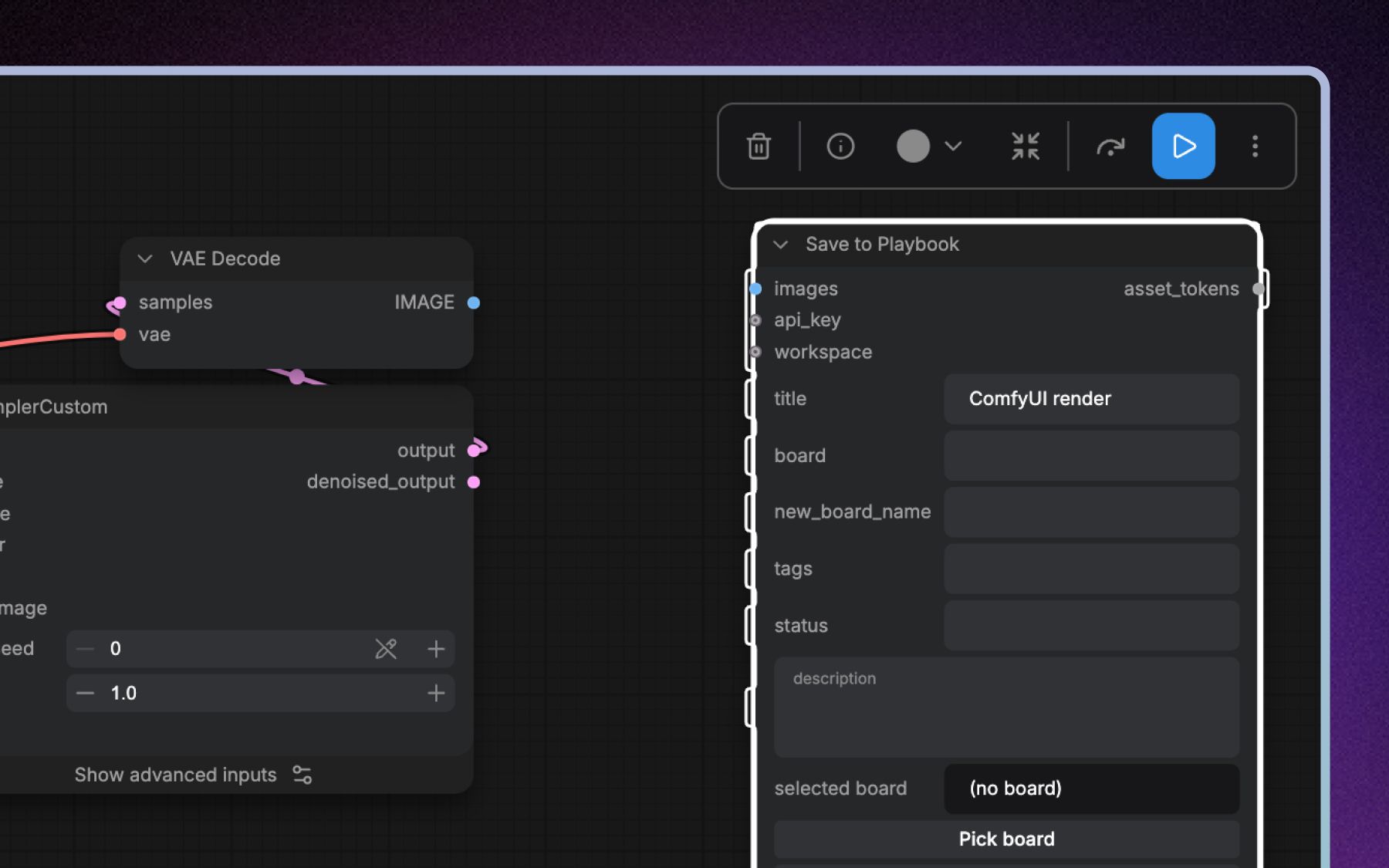
Connect the image output of the node that produces your final picture, usually VAE Decode, to the images input on Save to Playbook.
- title: names the asset in Playbook.
- board and new_board_name: send renders to a board that exists, or have one created. Pick board chooses from your workspace.
- tags, status and description: set them here and a render arrives already labelled, ready to filter with custom fields.
- Passed in, not typed: every one of these is an input as well as a field, so a prompt or a seed from earlier in the graph can name the asset.
Run the graph. Each image that reaches the node is uploaded, and asset_tokens carries the new assets' tokens onward.
What arrives in Playbook
Renders saved this way are marked with their provenance. Open one and the ComfyUI chip in the details panel lists the models and a summary of the graph that produced it, so a board of generations stays readable weeks later.
Prefer a different pipeline? Midjourney routes through Discord instead.