
Publish a product catalog
Learn how to publish a product catalog from your Playbook board so sales, retail partners, and marketplaces always pull the current image.
A catalog is a published board with one entry per product. Because the page reads from the board, swapping in this season's packshot updates every partner at once. No zip files, no version numbers in filenames.
Build the catalog board
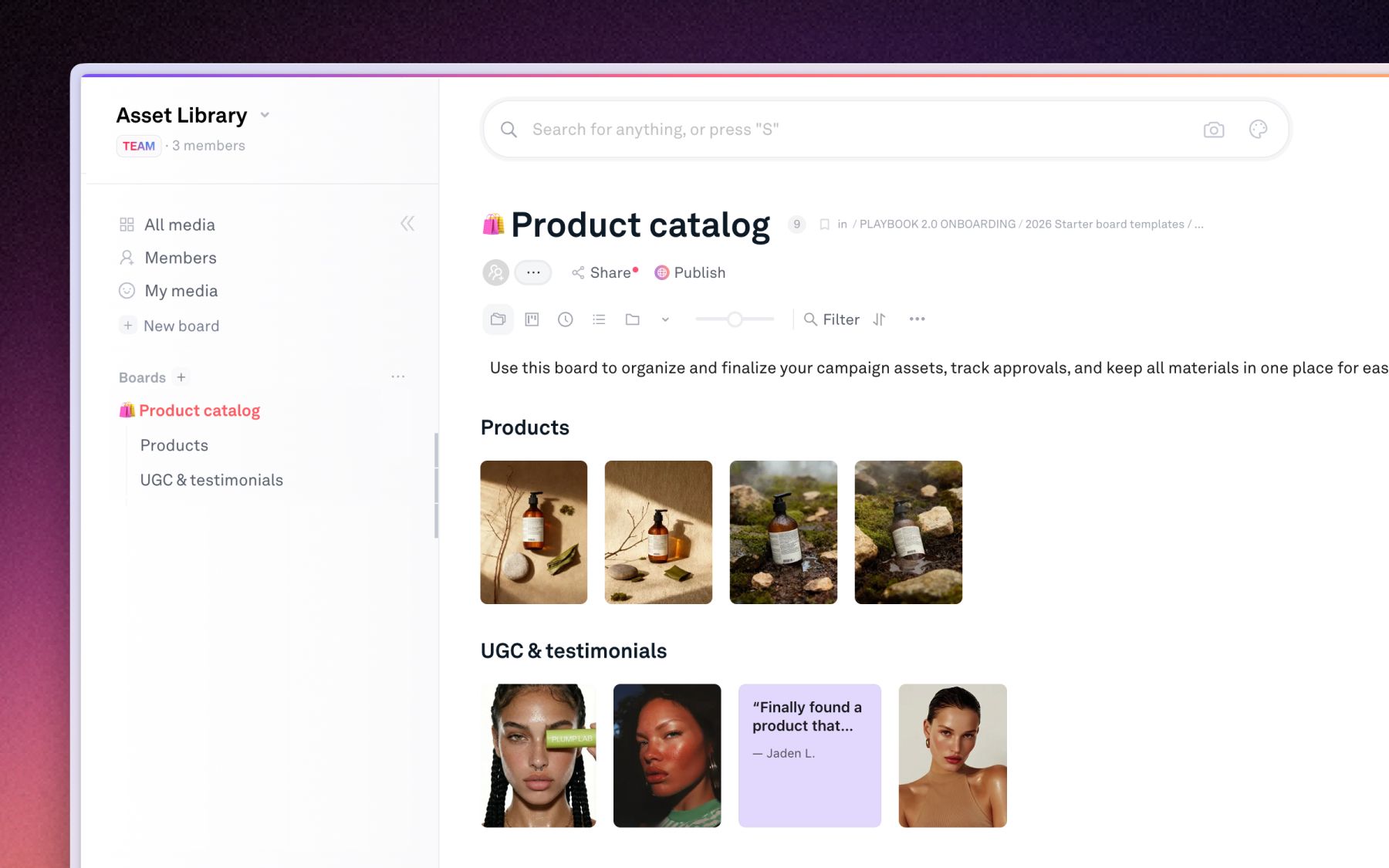
Create a board for the catalog and give every product its own home.
- Sub-boards: one per product line or category, so the page has a natural structure.
- Groups: stack the angles, crops, and lifestyle shots of a single product into one group. The catalog shows the cover, and the rest stays one click away.
See Using groups to manage iterations.
Add the fields buyers ask about
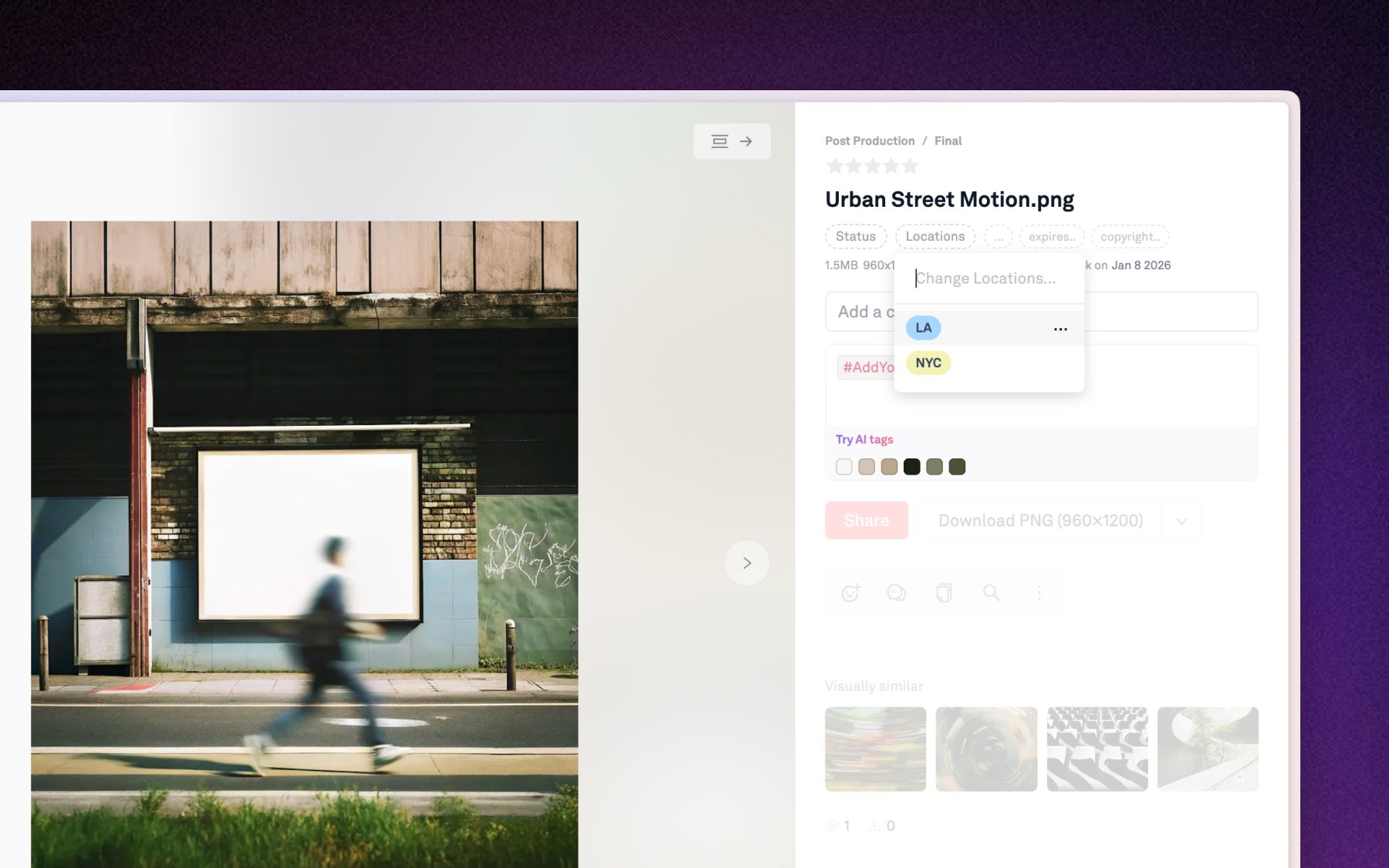
Add custom fields so the catalog carries the data, not just the picture.
- SKU: the field that ties the image back to your product system.
- Season or collection: what a partner filters by.
- Status: mark items as in progress or approved so nothing unreleased reaches the page.
- Board rules: require SKU on upload, so an unlabeled packshot never lands in the catalog.
Pick a catalog template
Click Publish in the top header and choose a template built for product imagery. All three are live in the template gallery:
- Product Portfolio: the product photography template, a clean grid built for packshots.
- Shiki Tei: a fuller editorial layout when the products need styling and context.
- My Portfolio: a minimal list layout that works when the catalog is long.
Customize your site
Open Template Settings to set your logo, cover, typography, and page slug, then check Desktop preview and Mobile preview. The full walkthrough of the publish editor, presets, and per-section editing is in Publishing your board.
Share it with partners and sales
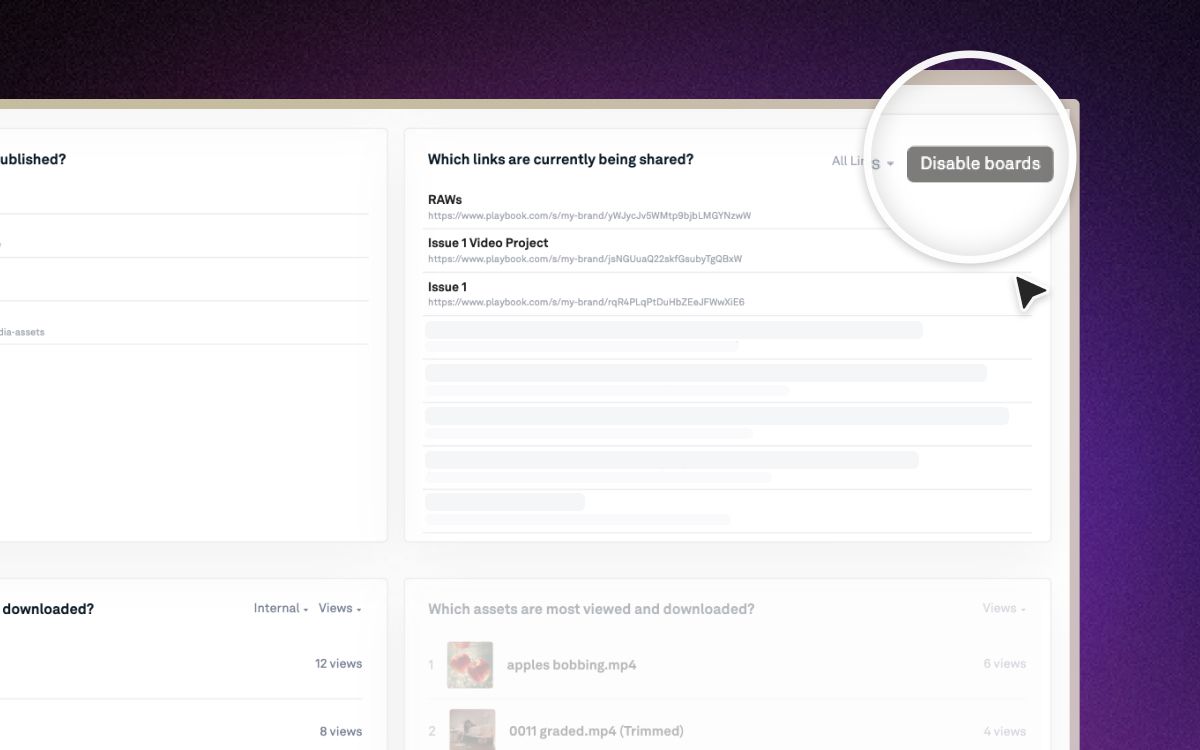
Toggle the link on and send one URL to everyone who needs product imagery.
- Downloads on: retail partners and marketplaces pull originals themselves.
- Password or expiry: for a catalog that is not announced yet.
- Insights: see which products are actually being downloaded.
Expected behavior
Anything you add, replace, or hide on the internal board reflects on the catalog immediately. Retire a product by hiding it on the board and it disappears from the page without touching the link.