
Canva
Learn how to browse your Playbook library inside the Canva editor and save finished designs back to a board.
The Playbook app for Canva puts your workspace in the Canva editor's side panel. Search your boards, drag approved assets onto a design, and send the finished design back to Playbook when you are done, so nothing has to be downloaded and re-uploaded in either direction. The app is free to use on every plan.
Install and connect
Install the Playbook app for Canva, then open it from the Playbook icon in the editor's side bar.
- Connect Playbook: click it once and sign in. If you do not have a workspace yet you can sign up from the same screen.
- Pick a workspace: the dropdown at the top of the panel switches between the workspaces you belong to, so a freelancer working across several clients can move between them without signing out.
Browse your library
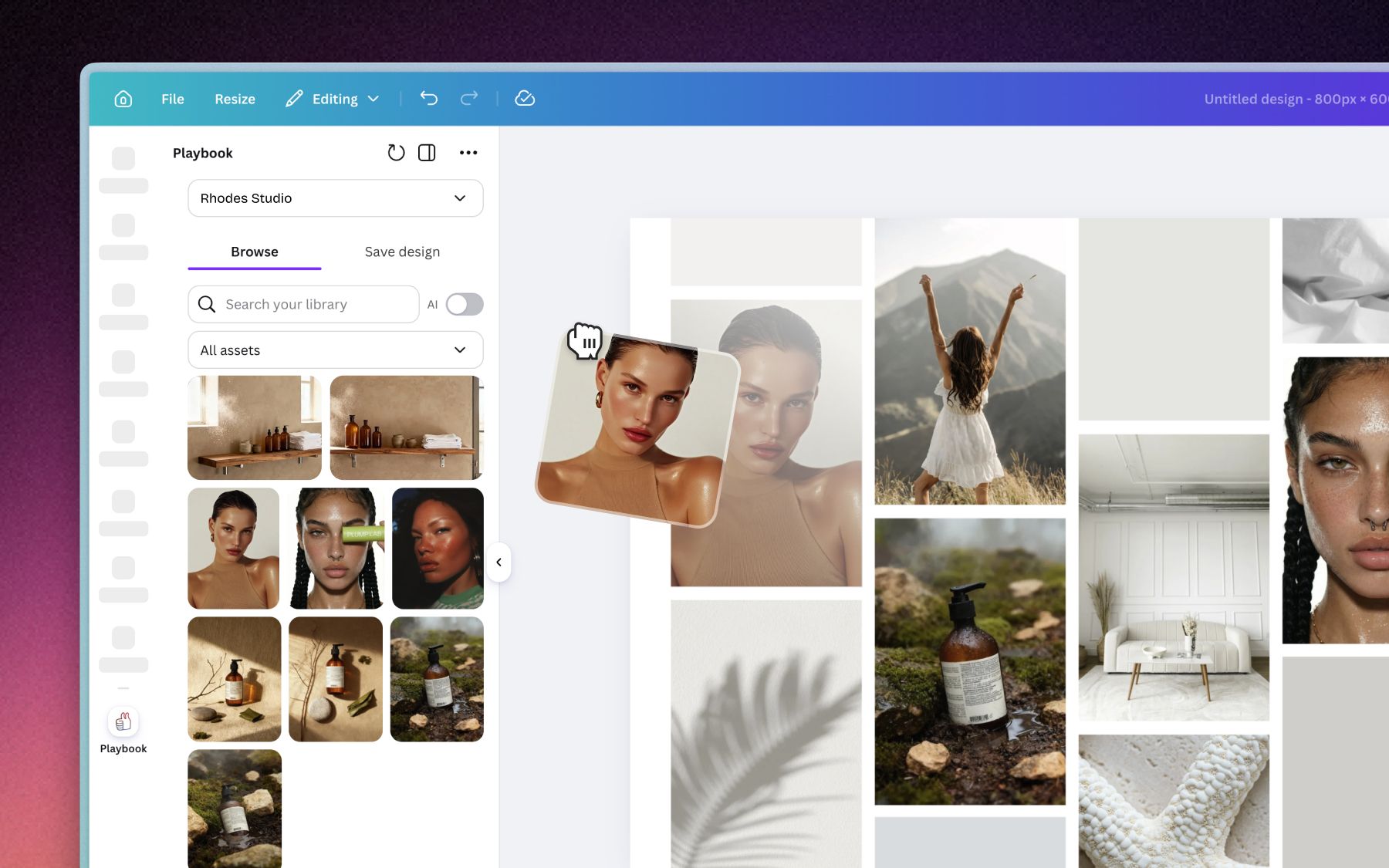
The Browse tab searches your whole workspace without leaving the design.
- Search your library: find an asset by name, or turn on the AI toggle to search in plain language.
- All assets: narrow the grid to a single board when you know where something lives.
- Click or drag: click an asset to drop it into the design, or drag it exactly where you want it.
Save a design back to Playbook
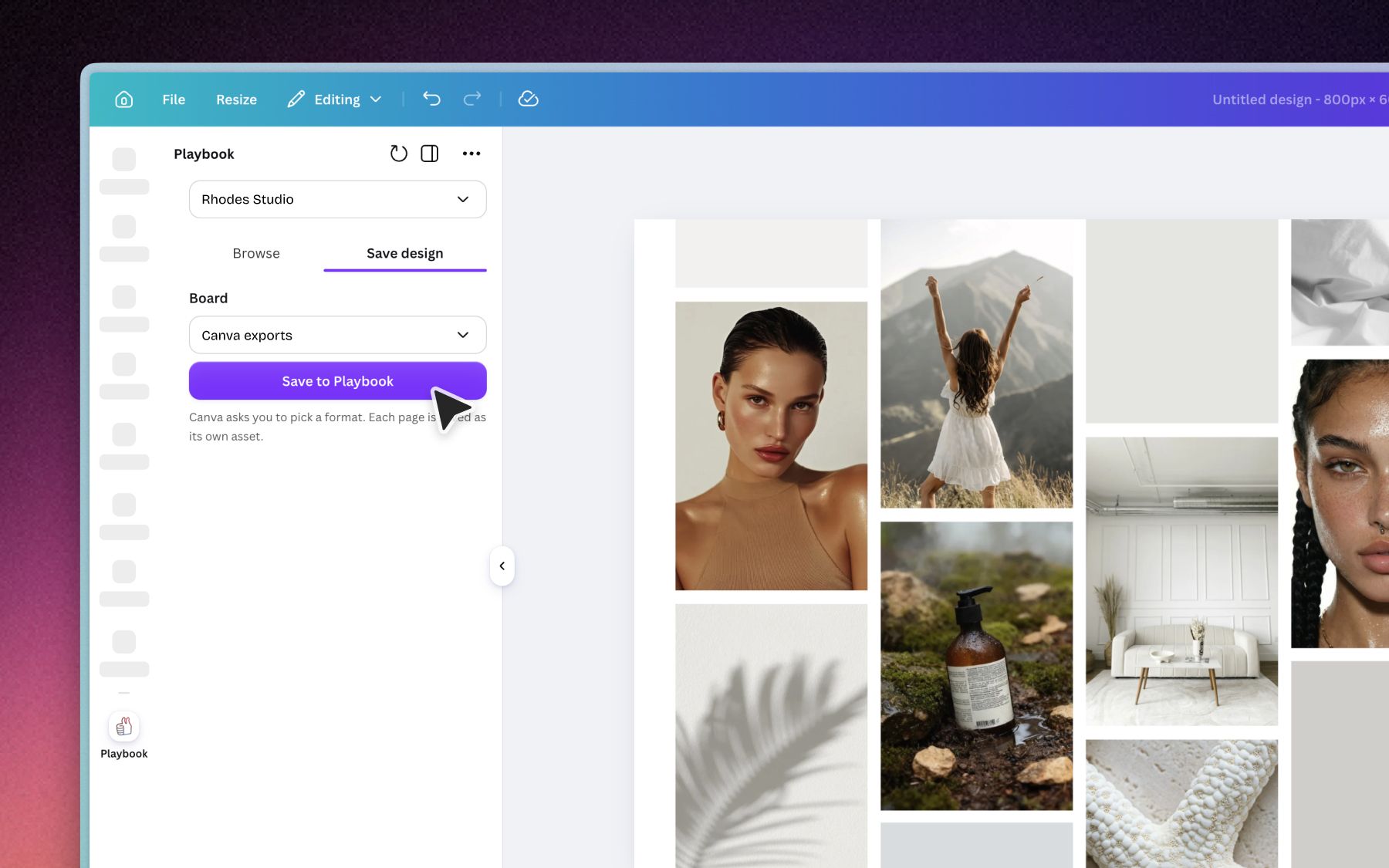
Switch to the Save design tab when the design is ready.
- Board: choose which board the export lands on.
- Save to Playbook: Canva asks you to pick a format first. Each page of the design is saved as its own asset, so a four page deck arrives as four files.
Where your design lands
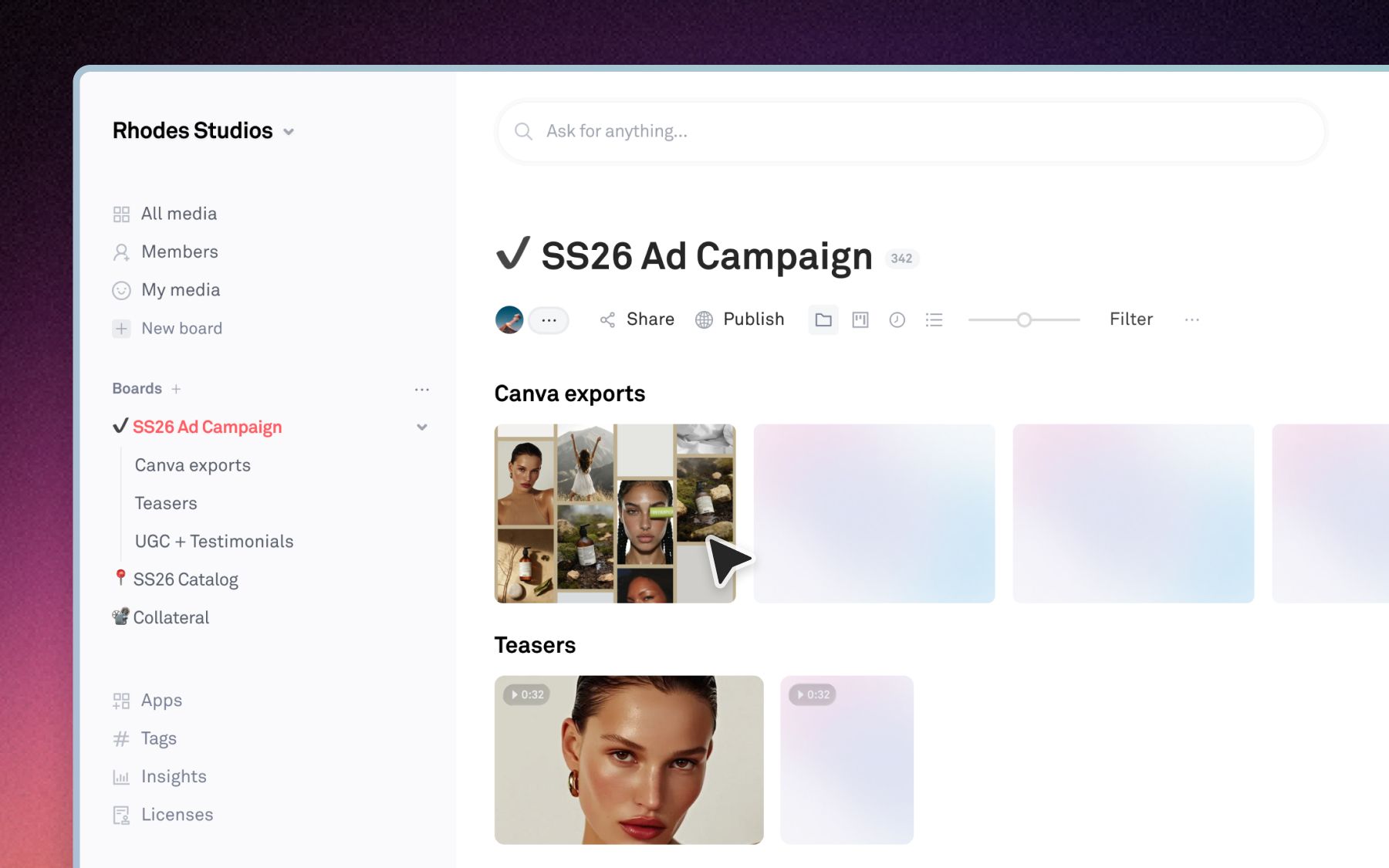
The export appears on the board you picked, alongside everything else in the workspace. From there it behaves like any other asset: you can share it, collect feedback on it, or set custom fields on it.
Looking for a different tool? See Import syncs & connections for Figma, Slack, Zapier and cloud storage.