
AI tagging
Learn how Playbook's AI tags your images and videos on upload, and how to train, remove, and search tags from the Tag manager.
AI tagging looks at what's actually in your images and videos and adds descriptive tags for you, like the subject, objects, colors, and style. Those tags feed straight into search, so a new upload is findable as soon as it finishes processing, without anyone stopping to tag it. You stay in control: the Tag manager is where you review what the AI added, teach it your own tags, and remove anything that doesn't belong.
Available on the Team plan and above.
How AI tags are applied on upload
There's nothing extra to do. Upload or import files as usual and Playbook tags each image and video in the background (a fresh upload can take a moment to show its tags). Videos are tagged shot by shot, so the tags describe what happens across the whole clip, not just the first frame.
- See an asset's AI tags: Open any asset and look in the Info panel on the right. AI tags are listed under AI tags, separate from the tags your team adds by hand.
- Search by a tag: Click any AI tag to see every other asset that has it.
- Turn it on or off: Workspace admins can manage this under Settings → AI features → AI tagging.
Review AI tags in the Tag manager
Click Tags and fields in the left sidebar to open the Tag manager. Every tag in your workspace lives here, whether a person or the AI added it.
- Filter the list: Use the dropdown above your tags to switch between All tags, User tags, and AI auto-tags.
- Spot AI tags: Tags added by AI show a spark icon next to their asset count. Hover the count to see how many assets were tagged by AI and how many by a person.
- Split by source: When a tag was added both ways, click it and choose All, User tag, or AI to see which assets got it from whom.
Train custom tags with the Similar asset finder
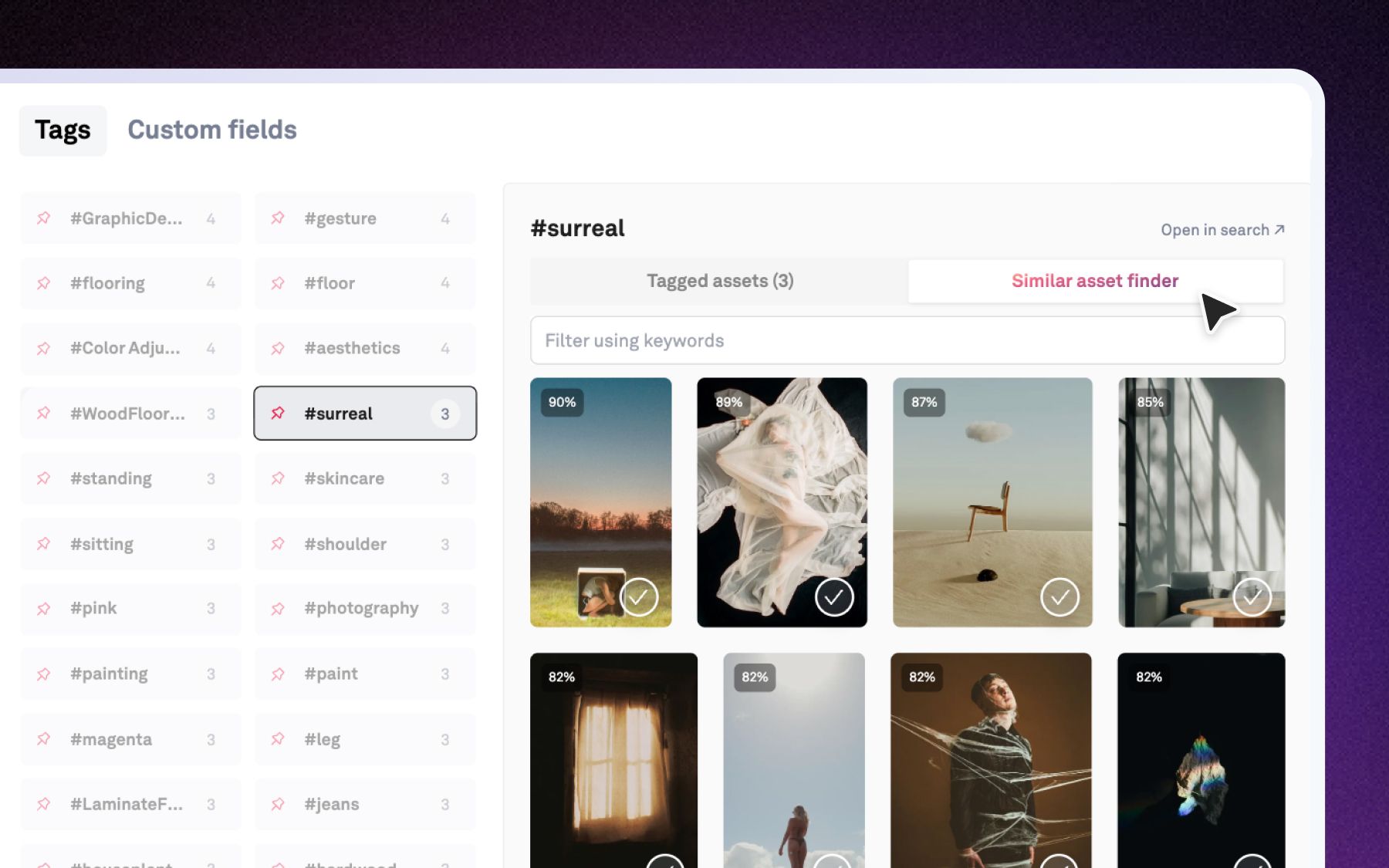
The AI knows what's in a photo, but not your product names, campaigns, or house style. Teach Playbook a tag once and it finds the rest of the assets that belong under it.
- Tag a few examples: Add your own tag to a handful of assets that show it. (See How to create & manage tags for the ways to tag.)
- Open the tag: In the Tag manager, click the tag, then switch from Tagged assets to Similar asset finder.
- Review the matches: Playbook shows assets that look like the ones you already tagged, each with a match percentage. Narrow them down with Filter using keywords.
- Apply the tag: Hover an asset and click + Tag, or select several and click Tag with #yourtag.
Every asset you add becomes part of what the finder learns from, so run it again to catch more.
Remove tags
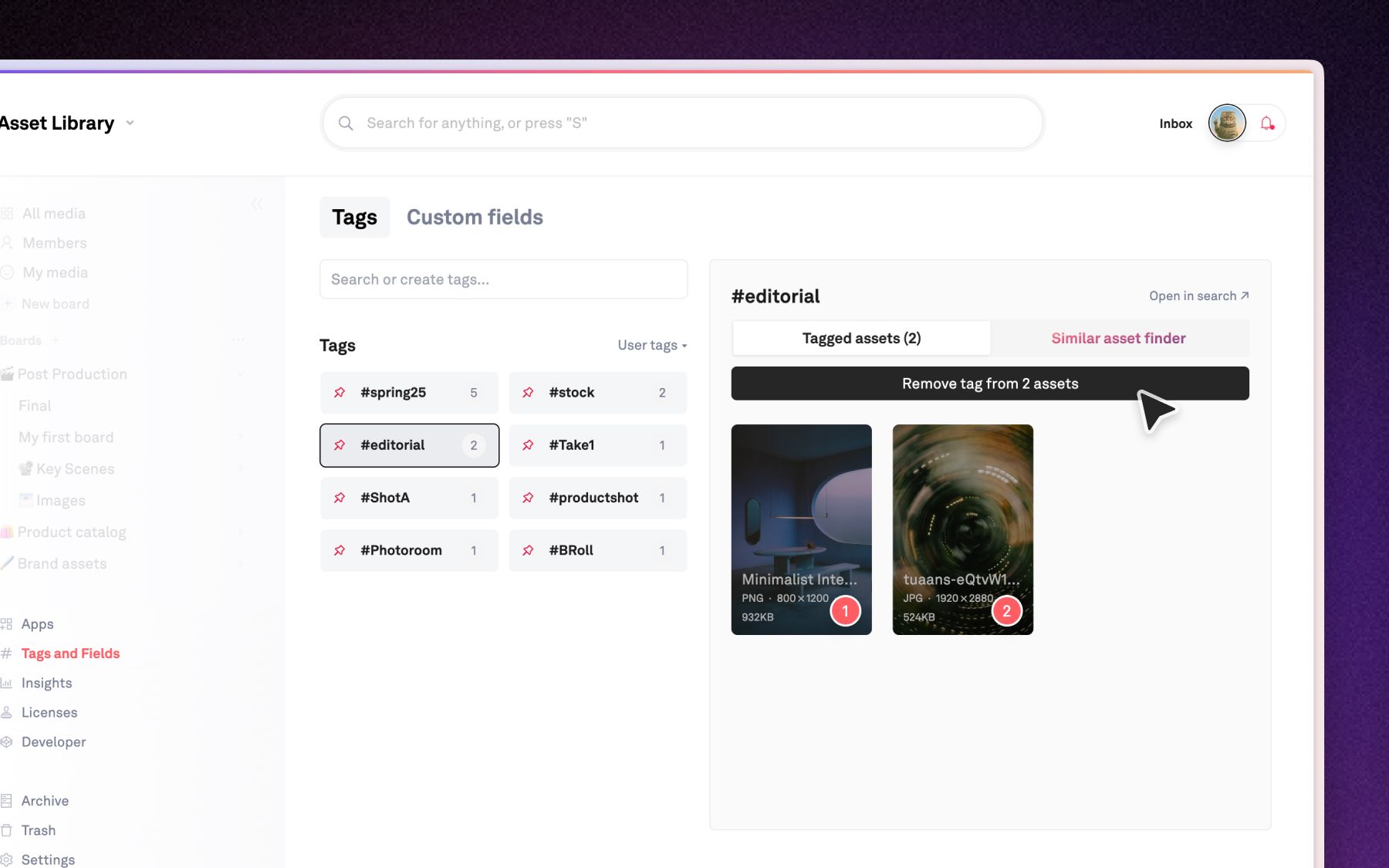
AI tags are a starting point, not the final word, so remove any that don't fit.
- From one asset: In the Info panel, click the × next to an AI tag.
- From several assets: In the Tag manager, click a tag and stay on Tagged assets. Hover an asset and click the × on its tag, or select several and click Remove tag from [X] assets.
- Delete a tag everywhere: Click the (•••) next to a tag and choose Delete tag. If the same name exists as both a user tag and an AI tag, choose Delete user tag or Delete AI tag to remove just one kind.
Open a tag in search
Click Open in search ↗ at the top of any tag in the Tag manager to see every asset with that tag on the Search page, where you can keep narrowing with filters or a follow-up. If you picked User tag first, the search leaves out assets that only the AI tagged.
- Filter boards by your own tags: In a board or All media, open the Tags filter and check Exclude AI tags to match only the tags your team added.
Tip: AI tags power Search & discovery and Finding similar assets, so the more accurate your tags, the better your search results.