
Facial recognition
Learn how Playbook groups photos by the people in them, and how to search by person and merge, hide, or remove the people it finds.
With face recognition on, Playbook finds the faces in photos across your boards and archive and groups photos of the same person together in Faces. Name someone once and you can pull up every photo they're in, filter a board down to them, or find the shots where two people appear together.
Available on the Team plan and above.
Turn on face recognition
A workspace owner or admin turns face recognition on for the whole workspace.
- When prompted: Owners and admins see a Turn on face recognition? dialog. Click Agree to accept the Playbook AI Policy and start, or Not now to decide later.
- From Settings: Go to Settings → AI features → Face recognition and click Turn on.
Playbook then works through the photos already in your workspace, and people appear in Faces as they're grouped. New photos are analyzed as they're uploaded. Face data is used only for your workspace and is never used to train AI models.
Browse and name people
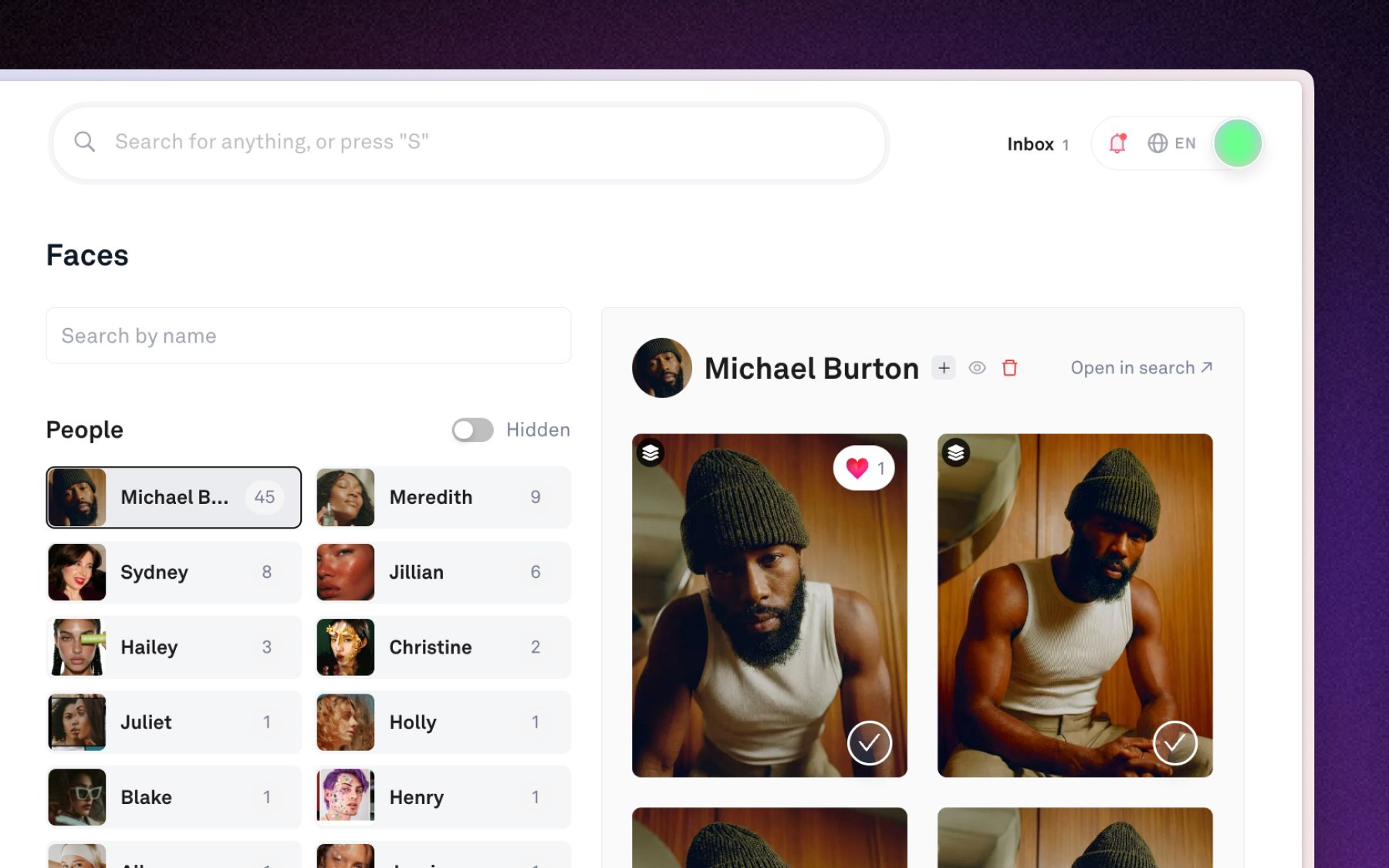
Click Faces in the left sidebar. Everyone Playbook has found is listed on the left with their photo and photo count. Click a person to see all of their photos on the right.
- Name someone: Click the name at the top of their panel (it reads Unnamed person until you add one) and type a name. Use Search by name to find named people quickly.
- Change their photo: Hover their picture, click Edit, and pick a different face.
- See who's in a photo: Open any photo and look for People in this photo in the Info panel. Hover a face in the image to see who it is.
- Fix a single face: Click the (⋮) next to a person under People in this photo and choose Change person if it's someone else, Not this person if it was grouped by mistake, or Not a face if it isn't a face at all.
Search by person
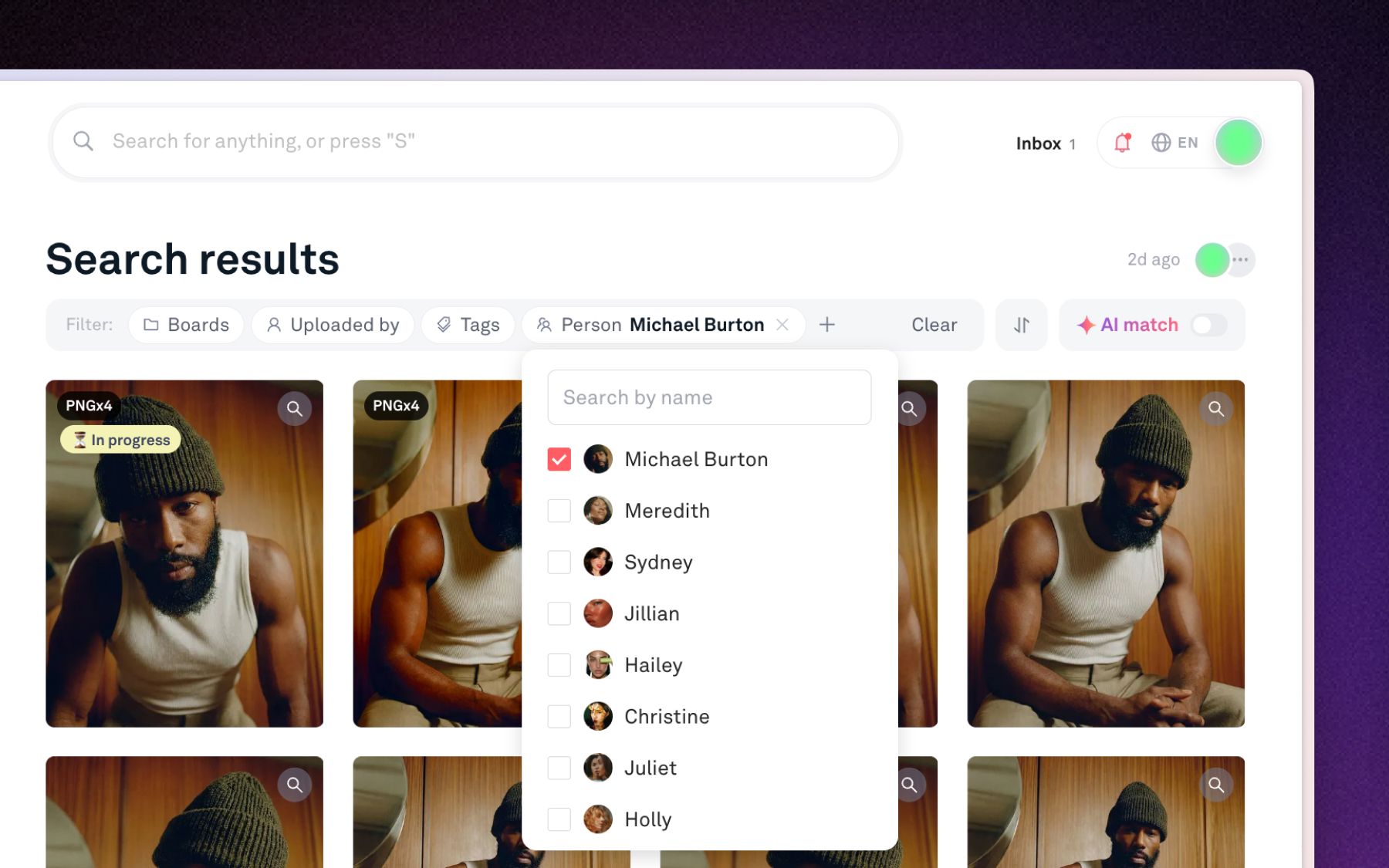
- From Faces: Click Open in search ↗ in a person's panel to see all of their photos with the rest of your search and filter tools.
- From filters: In a board, All media, or search, open the filters and choose Person, then pick one or more people. Pick several to find photos where they all appear together. (See Filtering workspace or boards for more on filters.)
Merge people
Sometimes the same person shows up as two or more entries. Merge them so all of their photos live in one place.
- One at a time: Open the extra entry in Faces, click the + button (Merge this person into another), pick who they really are, and click Merge. Their faces move to that person and the extra entry is removed.
- Several at once: Hover a person's picture in the list and click the select circle, then select the others (shift-click selects a range). Click Merge, choose the person to keep, and confirm. You can merge up to 50 people at a time.
Merging can't be undone, so double-check before you confirm.
Hide, delete, or remove people
- Hide person: Click the eye icon to take someone out of the Faces list without deleting anything, handy for strangers in the background. Turn on Hidden above the list to see hidden people, then click the eye again to Unhide person.
- Delete person: Click the trash icon and confirm with Remove person. Their face data is deleted, but their photos stay in your workspace and won't be analyzed for faces again unless the photo changes. To delete several people at once, select them in the list and click Remove.
- Remove a person from specific photos: In a person's panel, select the photos that aren't them and click Remove person from [X] assets (up to 500 at a time).
Expected behavior
- Who can manage people: Workspace owners and admins can rename, merge, hide, and delete people and fix faces. Members and viewers can browse Faces, see People in this photo, and search by person. Guests and shared links never see face data.
- Photos only: Face recognition analyzes the images in your boards and archive, not videos.
- Give it time: Right after you turn it on, Faces may say "We're still analyzing your photos, or no faces have been found yet." People fill in as the analysis runs.
- Turning it off: Go to Settings → AI features → Face recognition and click Turn off. Your workspace's face data is deleted within 30 days unless you turn it back on.
- Where it's offered: Face recognition isn't offered in Illinois, and it has to be turned on from playbook.com in a browser rather than the desktop app.