
Build and deploy custom apps
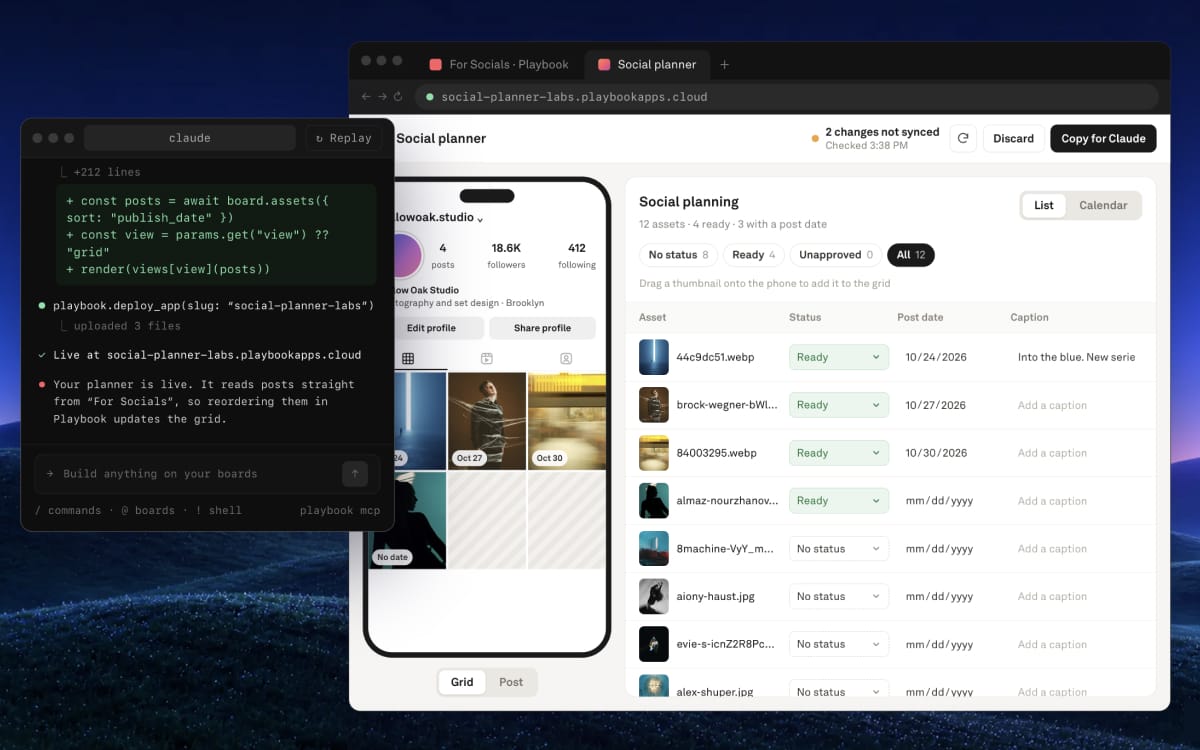
Learn how to have your AI assistant build a custom app on a Playbook board, host it at its own link, and choose who can open it.
A custom app is a small web app that sits on top of one board: a gallery, a portfolio, a client review room, a social feed planner. You describe it, your AI assistant writes it, and Playbook hosts it at its own address. There is no database or server to manage: the app reads your board, so when you add a file in Playbook, the app shows it.
Connect your AI assistant
Custom apps are built by an AI assistant connected to Playbook.
- Claude, ChatGPT, Cursor and other MCP clients: go to Developers → Connect AI and follow the steps to connect. The Generate custom apps section there has ready-to-copy prompts.
- Playbook Intelligence: you can also ask Playbook's own AI chat (beta) to build an app. Apps it builds open only to people with access to the board.
See API & MCP for more on connecting an assistant.
Describe the app you want
Tell your assistant which board the app should show and what it should do. For example: "Build an Instagram feed planner from my newest board, open only to its members. Give me the link."
- What it can show: every asset on the board and its sub-boards, with previews, colors, tags, statuses, custom fields and who uploaded them. It can't see anything outside that board.
- What it can do: keyword and AI search inside the board, and remember a visitor's favorites in their browser.
The assistant writes the files, deploys them, and gives you the app's link. A new link can take a minute or two to start working.
Choose who can open it
Every app has one of three access settings:
- Anyone with the link: no sign-in needed.
- Anyone with the password: visitors type a password of at least 8 characters. (On plans with share-link passwords.)
- People with access to the board: workspace members and guests invited to the board, after they sign in to Playbook.
Anyone who can open an app sees everything on its board, unapproved assets included, so check the board before you share a public link. The board's own share link does not protect the app; only this setting does.
Collect uploads, downloads and feedback
Apps follow the board's share settings in the Share tab:
- Uploads: when the share link allows uploads, visitors can drop files straight into the board.
- Downloads and watermarks: when the link allows downloads, visitors can download originals (with the link's password, if it has one). A watermark on the link shows on every image in the app.
- Changes from your team: in an app open to People with access to the board, signed-in visitors can update titles, statuses, fields and tags, approve assets and comment, using their own Playbook permissions.
See Sharing controls & protection to set these up.
Find and manage your apps
Your apps appear in the left sidebar under Custom apps. Click one to open it in a new tab.
To manage them, open Developers → Custom apps. For each app you can:
- Who has access: change the access setting. It takes effect within about a minute, with no rebuild.
- Active: switch an app off. Its link stops working until you switch it back on.
- Delete: take the app offline for good. The board and its assets stay in Playbook.
Only people who can edit an app's board can change it.
Update or roll back an app
To change an app, ask your assistant ("make the thumbnails bigger") and it redeploys. Playbook keeps the last 50 versions of every app, so you can ask your assistant to put an earlier version back live. Updating an existing app always works, even if you are at your plan's app limit.
Good to know
- How many apps you can have depends on your plan.
- Changes on the board can take up to five minutes to show in the app.
- Want your own domain? An app can live on an address like
gallery.yourcompany.com. Contact the Playbook team to set it up. - For the technical details, read the hosted apps guide.