Workspace settings & preferences
How to take full control of your Playbook workspace with many settings and preferences.
How to change workspace name or URL
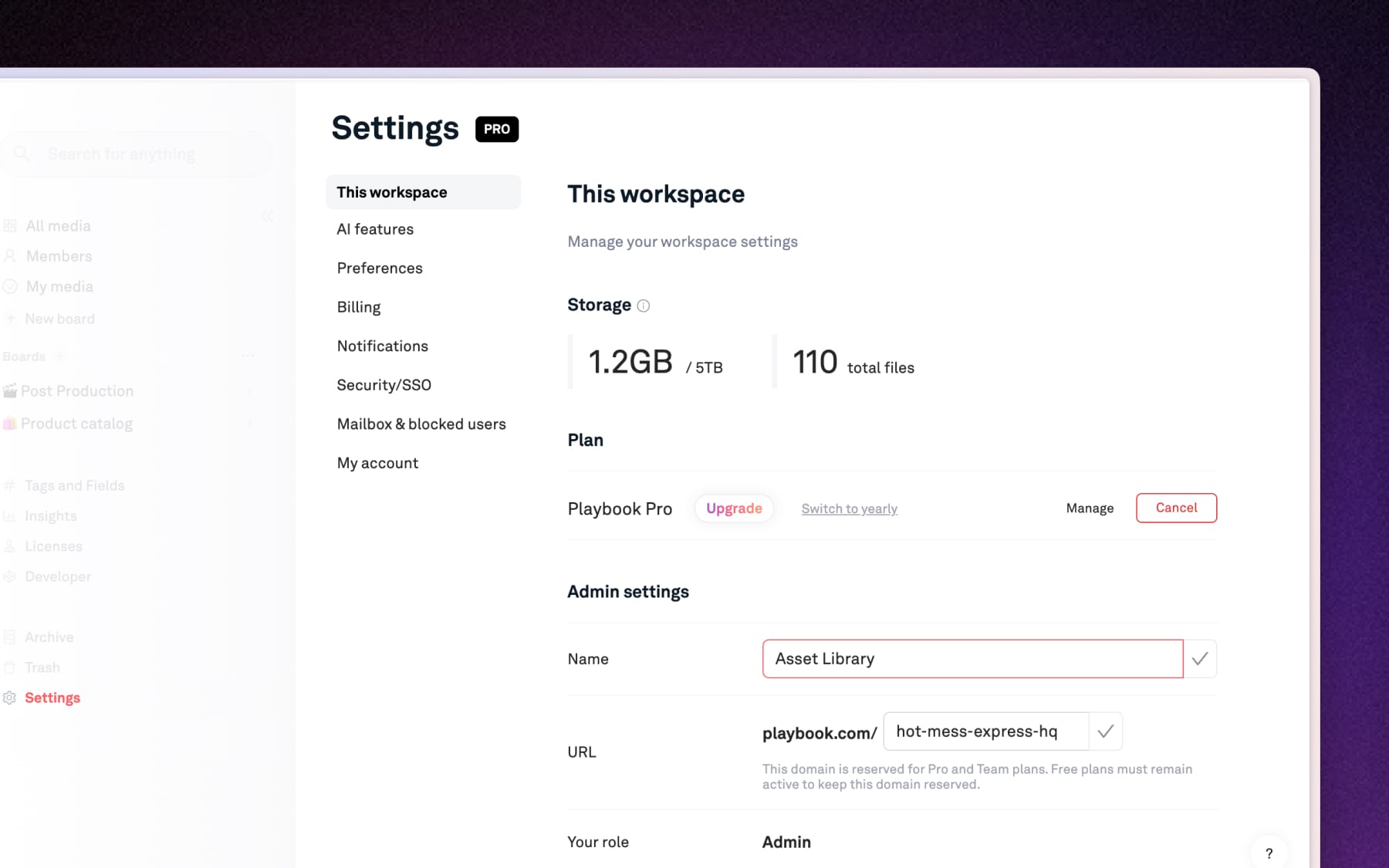
You can update the workspace name and the unique URL at any time.
- Open Settings → This workspace
- Locate the Name & URL fields under the Admin settings section.
- Type the new workspace name or URL into the box
How to delete workspace
Permanently remove a workspace and all of its data
- Open Settings → This workspace
- Scroll to the very bottom of the page
- Click the Delete workspace button.
- Confirm the action when prompted. This will permanently delete all boards and assets within your workspace.
Manage auto-deduplicates and auto-group
Open Settings → go to AI features tab:
- Auto-clean duplicates: Toggle this ON to automatically deduplicate similar files by content at import and upload.
- Auto-group files: Toggle ON to group assets that share the same file names at the point of upload.
- To disable: Simply toggle these switches OFF to return to manual organization.
How to choose default view
Decide how your assets appear (Gallery, List, Kanban, Simple folder, or Timeline) by default when someone opens the workspace or creating a new board.
- Open Settings → Preferences
- Under Default view section, click the dropdown to select your view.
How to add custom logo
Upload your brand logo to appear on all your shared links and at the top of your library.
- Open Settings → Preferences.
- Under Custom logo for shared links.
- Drag & drop your logo to update the branding across all shared pages.
How to switch between light and dark mode
Playbook can render in a light or dark theme, easier on the eyes during long sessions or in low light. You can switch anytime in two places:
- From your account: open My account, find Workspace appearance, and choose Light or Dark.
- From the profile menu: click your profile circle and choose Light or Dark.
Your choice is saved to your account and applies across the app.
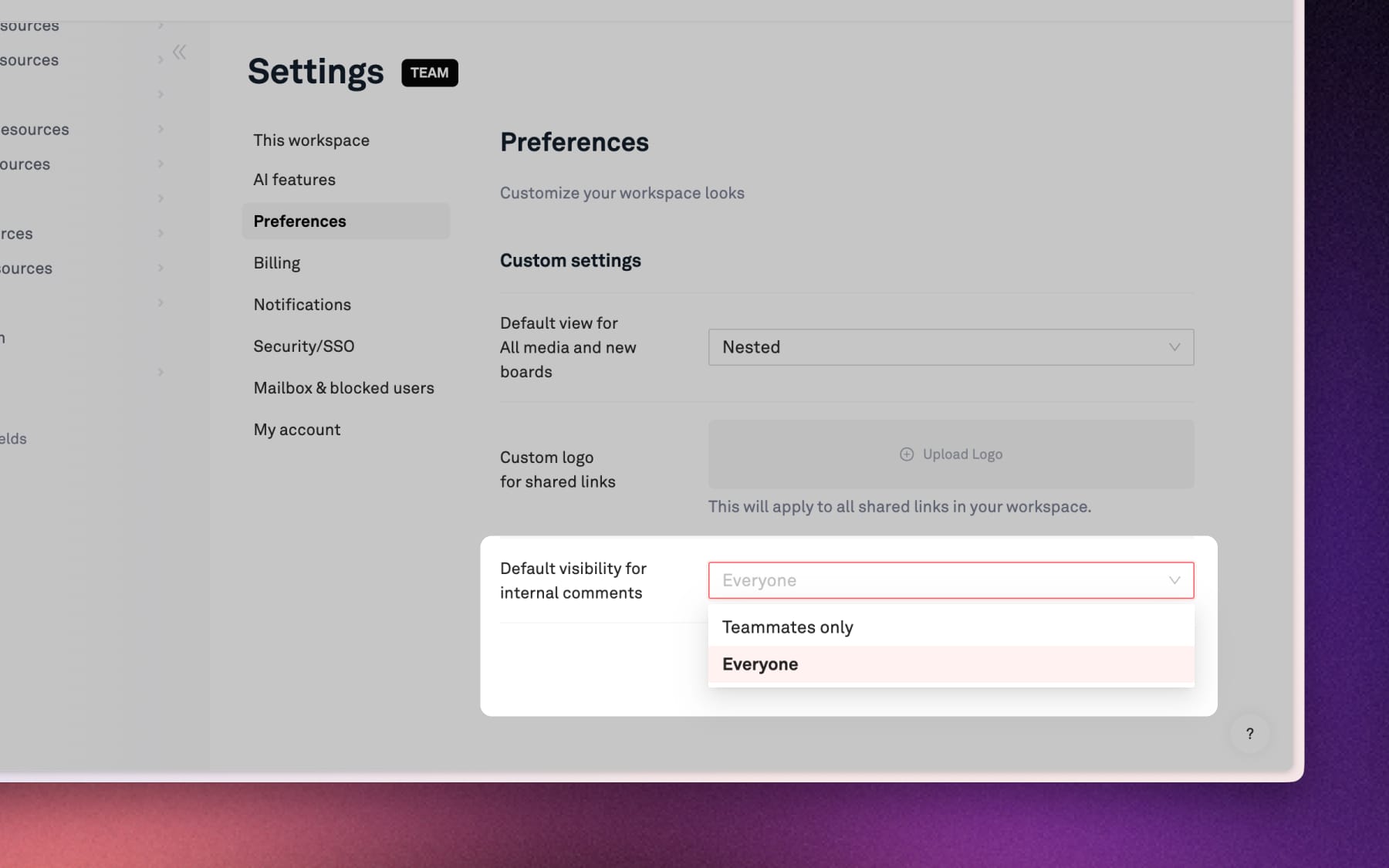
Default comment visibility (Team plan only)
For workspaces on a Team plan, you can set who sees internal comments by default.
- Open Settings → Preferences
- Under Default visibility for internal comments.
- Choose between Teammates only or Everyone (default) from the dropdown menu.