
Figma
Learn how to use the Playbook plugin for Figma to pull approved assets into a design
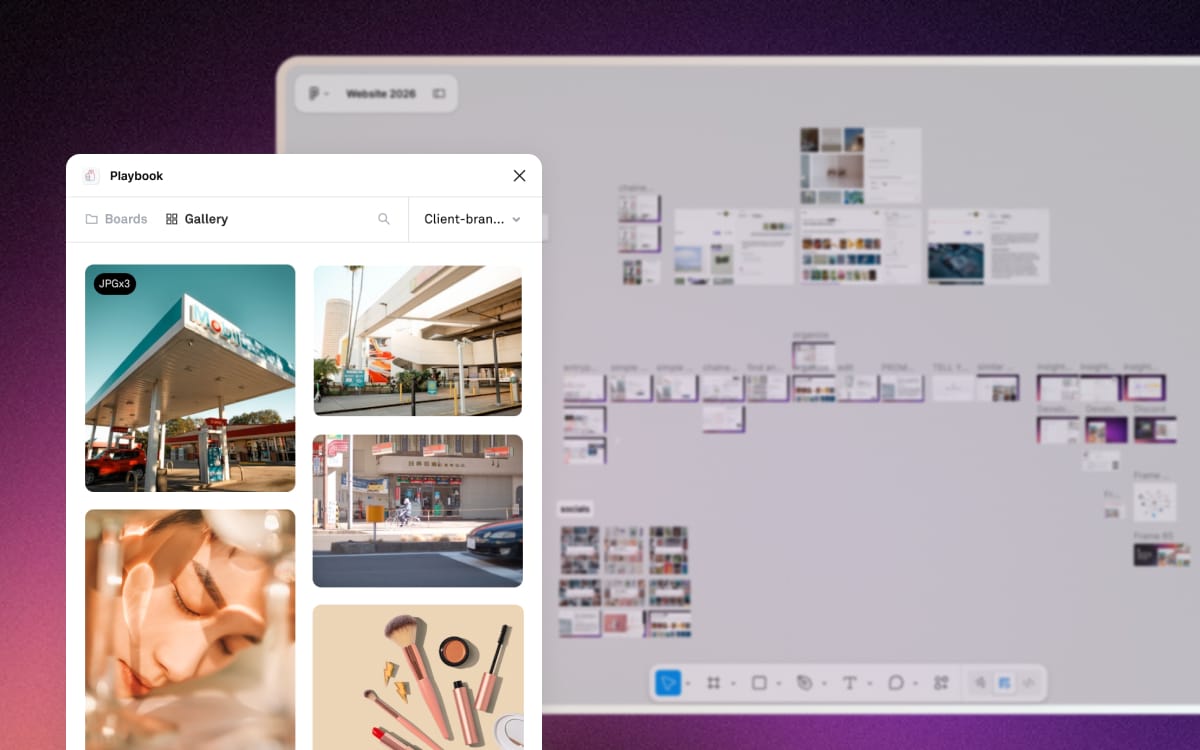
The Playbook plugin for Figma puts your workspace inside the design file. Pull approved photography, logos and product shots straight onto the canvas, and send final exports back to a board when the work is done, without downloading and re-uploading anything.
Install the plugin
Install the Playbook plugin from the Figma community, then sign in to your Playbook workspace the first time you open it.
- Where it lives: open it from any Figma file through the plugin menu.
- One sign-in: the plugin remembers your workspace, so later files open straight into your boards.
Pull assets into a design
With a Figma file open, open the plugin and browse the boards you already have.
- Drag and drop: drag an asset from the plugin panel onto the canvas and it lands as a layer.
- Work from the real source: because you are pulling from the workspace rather than a local copy, the file on the canvas is the one the team approved.
Other ways to move work in and out: Import syncs for cloud storage, and Canva for the same round trip in the Canva editor.